How to Find Tracks That Mix: Browse Your DJ Library by Key, BPM and Energy
A list of 5,000 tracks sorted by title tells you nothing about what to play next. The question a DJ asks of a library is narrower: what do I have that goes with this? That comes down to three things you can see at once, key, tempo and energy, and one you can't see in a table at all: the shape of the track. This guide covers how to read a library that way, and how the SetFlow Library now shows it.
The three things that decide whether two tracks mix
- Key. Two tracks in compatible keys can overlap for 32 bars without the melodies fighting. On the Camelot wheel every key has three that mix with it: one step either way round the ring, and the key with the same number and the other letter.
- Tempo. Within 4% you can beat-match without anyone hearing the pitch move. At 124 BPM that is about 119 to 129.
- Energy. Key and tempo tell you a mix is possible. Energy tells you whether it is a good idea: a track two levels down empties a peak-time floor however well it is in key.
Sorting a table can only show one of these at a time. Sort by key and a 90 BPM track sits beside a 140. Sort by BPM and every key is mixed together. What you want is all three narrowed at once.
See the shape of your library first
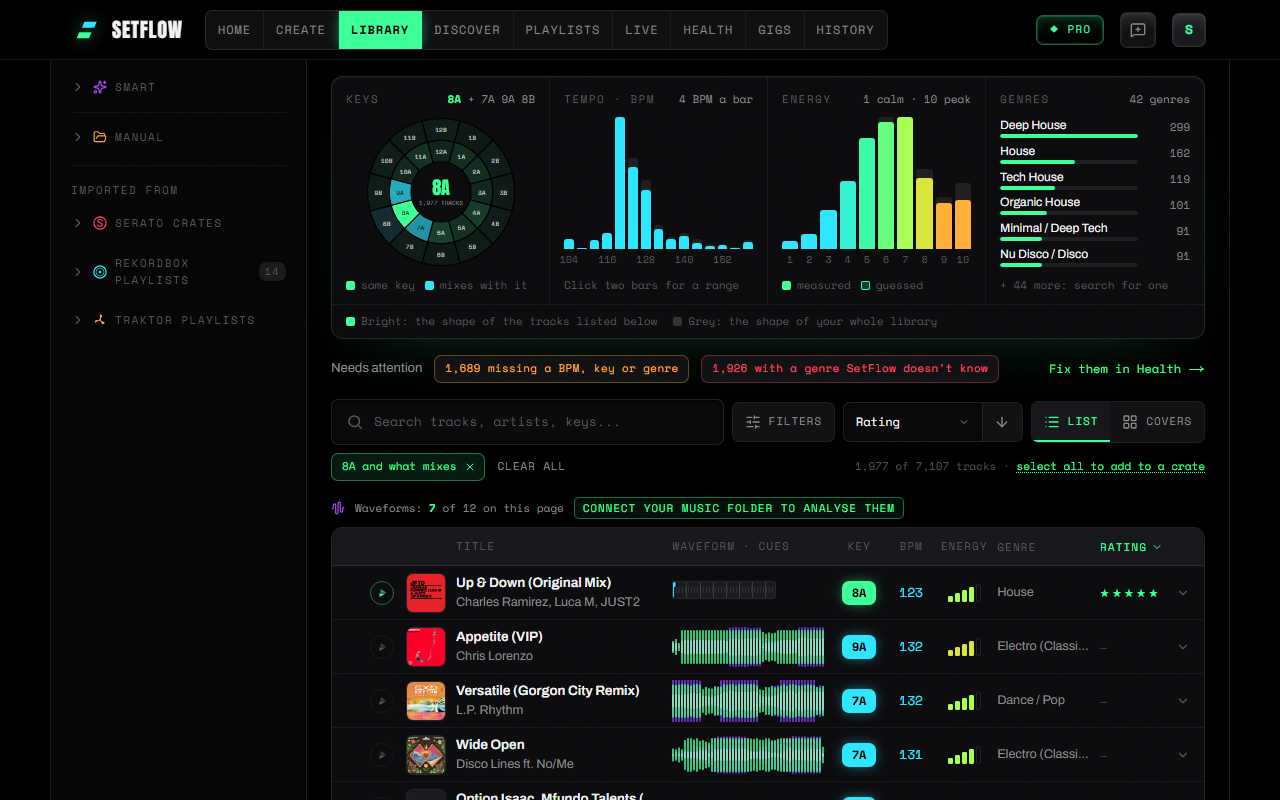
Before you go looking for one track, it helps to know what you own. The top of the SetFlow Library is four charts, each drawn from your whole collection:
- Keys: a Camelot wheel, minor keys on the inner ring and major on the outer, brighter where you have more tracks. Most house and techno libraries glow on the inner ring between 4A and 9A.
- Tempo: how many tracks sit at each BPM. One tall spike at 122 to 126 is a house library; a second hump at 174 is the drum and bass you forgot you had.
- Energy: tracks at each level from 1 to 10. Solid bars are energy that was measured from the audio, tagged by Mixed In Key or set by you. Hollow bars are a guess from genre and tempo.
- Genres: your biggest six, by track count.
Gaps matter as much as peaks. A wheel that is dark from 10A round to 2A means you will struggle to follow a track in 12A. An energy chart with almost nothing below 4 means you have no warm-up.
Find what mixes with the track you are playing
- Click its key on the wheel. The list becomes that key and its three neighbours. Key chips in the list turn lime for the same key and cyan for the ones that mix with it.
- Click two bars on the tempo chart to make a range around its BPM.
- Click an energy bar, or two for a range, for where you want the floor to go next.
Each chart keeps drawing the tracks the others have left, so you can see where else to go. Pick 8A and the tempo chart shows the tempos your 8A tracks come in; the genre list shows which genres they are. What you picked reads back as chips above the list, each with a cross to remove it.
Open any row and it tells you how many tracks in your library mix with it: a compatible key, within 4% of its tempo. A track with 300 partners is easy to place. A track with four is one to plan around.
See how a crate differs from the rest
Pick a crate or an imported playlist and the charts redraw as that crate in colour, over your whole library in grey. It is the quickest check that a crate is what its name says: a “warm-up” crate whose energy bars sit at 7 and 8 isn't one.
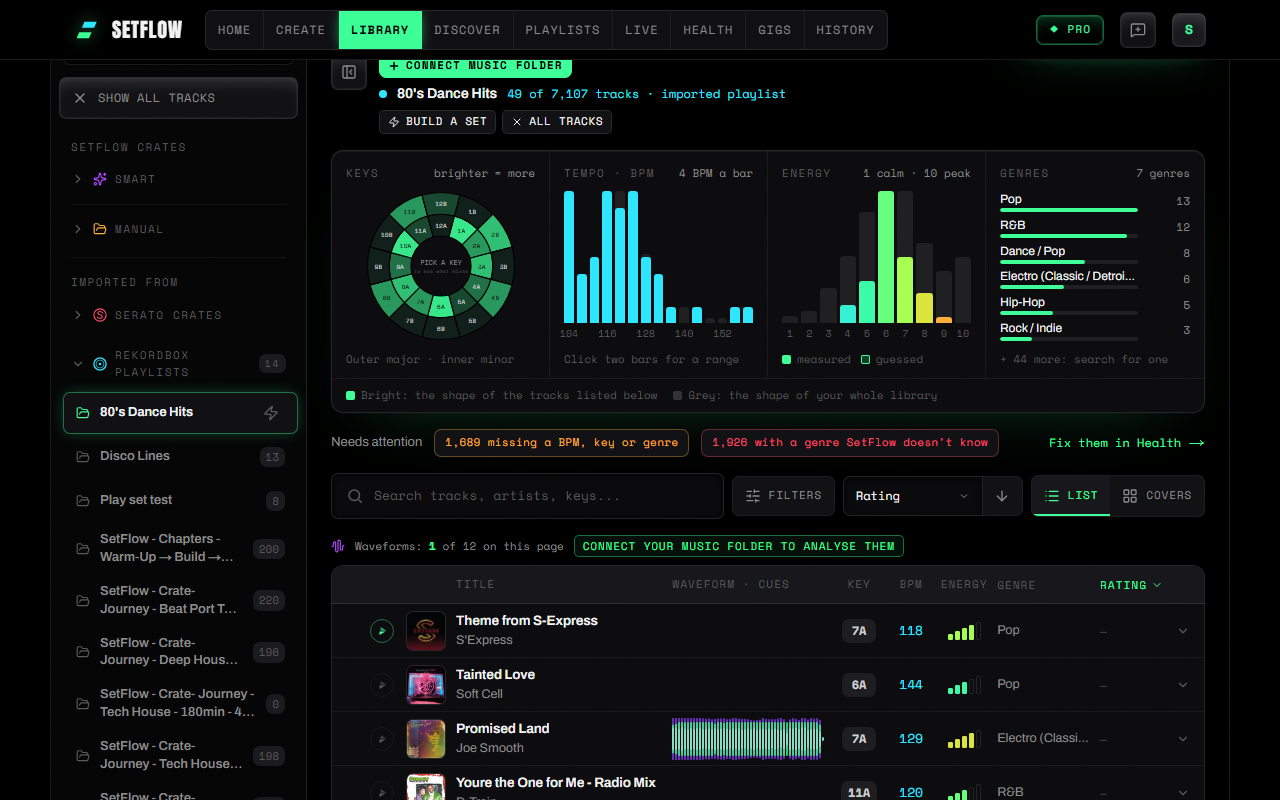
It works the other way round too. With a key or a tempo picked, every crate in the list shows how many of its tracks match beside its total, such as 12/49. That answers “which crate has my 8A tracks?” without opening each one.
The waveform shows what the numbers can't
Two tracks at 124 BPM in 8A can still be nothing alike: one a ten-minute roller, the other three minutes with a breakdown in the middle. Each row in the Library shows the track's waveform, lows, mids and highs, with your cue points on it. You can see a long intro, a break, or a track that never lets up, before you load it.
Tracks that haven't been analysed show an Analyse button, and one button above the list does the page. It takes about two seconds a track and runs in your browser on the files in your music folder, in Chrome or Edge on a computer. The audio is never uploaded. On Pro the results are saved to your account, so the waveforms also show on your phone and in the Mix view; on other plans they are kept on the computer that analysed them.
Covers, when you know it by sight
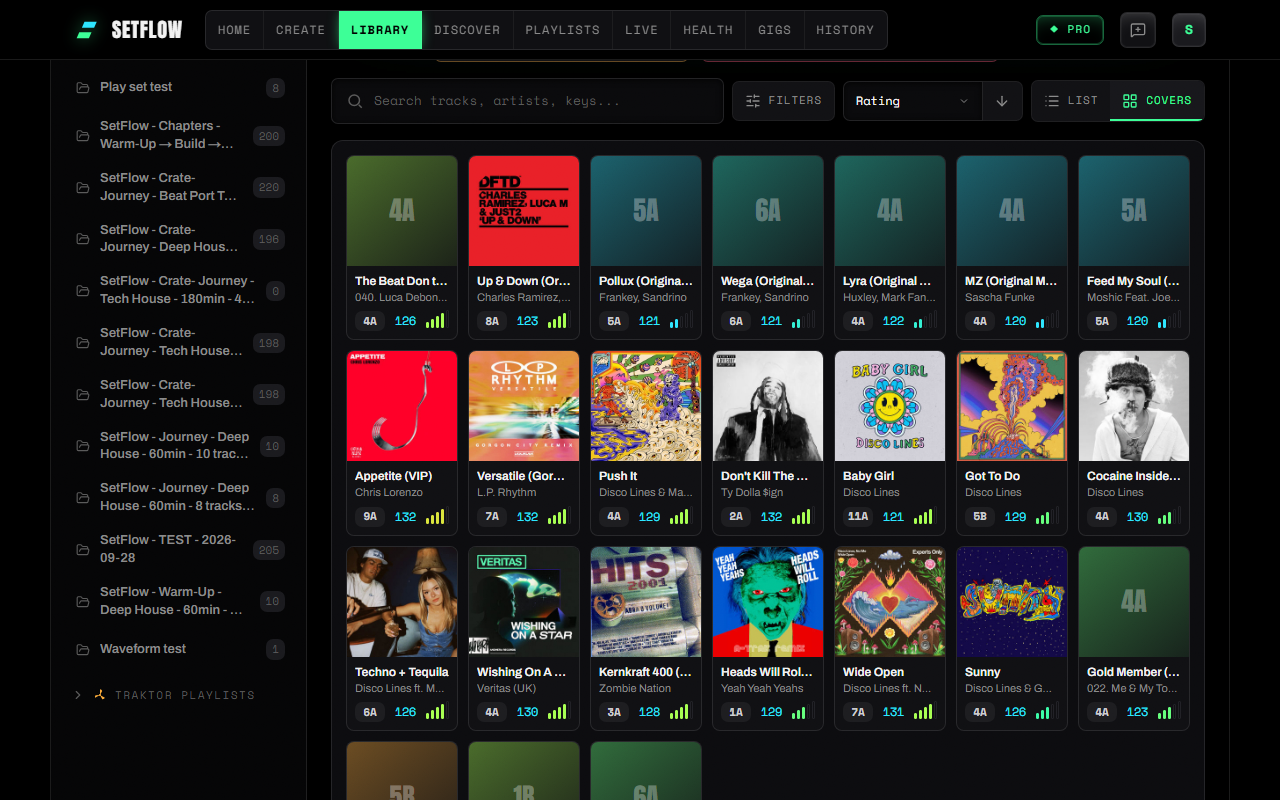
Some tracks you know by the sleeve, not the title. The Covers view turns the list into a wall of small covers with the key, BPM and energy under each. A track with no artwork shows its key on its energy colour, so the wall is still readable. Click a cover for the same details as an open row.
Fix what the map shows is missing
A track with no key can't appear on the wheel, and one with no BPM never matches a tempo range. Under the map, Needs attention counts the tracks missing a BPM, key or genre and lists them in one click. Library Health ranks what to fix first, and how to organise your DJ library covers the tagging habits that stop it happening again.
Frequently asked questions
How do I find tracks that mix well together?
Start from the track you are playing. Look for tracks in the same key, one step either way on the Camelot wheel, or the relative major or minor, and within about 4% of its tempo. Then pick by energy: the same level to hold the floor, one or two higher to lift it. In SetFlow, click the key on the Library’s wheel and a tempo range on the chart, and the list is those tracks.
Which keys are compatible on the Camelot wheel?
Three keys mix cleanly with any key: the same number with the other letter (8A and 8B, the relative major or minor), and one number up or down with the same letter (8A with 7A and 9A). The wheel wraps round, so 12A sits next to 1A.
How close do two tracks need to be in BPM?
Within 2% is an easy mix and within 4% is comfortable on any modern player: 124 BPM mixes with roughly 119 to 129. Past about 8% a beat-matched track sounds noticeably sped up or slowed down, and out of key without key lock.
Should I sort my DJ library by key or by BPM?
Neither on its own. Sorting by key puts a 90 BPM track beside a 140 BPM one, and sorting by BPM mixes every key together. Filter by both at once: a key and its neighbours, inside a tempo range. That leaves a short list where every track is a real option.
Do I need the audio files to see my library by key, BPM and energy?
No. Key, BPM, genre and rating come from your Rekordbox, Serato or Traktor export. The audio files are only needed for the waveforms, which SetFlow draws in your browser from the music folder on your computer. Nothing is uploaded.
The new Library is in SetFlow 2.89.0, on every plan: see the changelog, or open your Library and click a key.
Get the Camelot cheat sheet
A one-page printable of all 24 keys, compatible moves, and energy jumps — handy next to the decks.
One email with your download. No newsletter, no spam.
Ready to build better sets?
Import your Rekordbox, Traktor, or Serato library and generate perfectly mixed DJ sets in seconds.
Try SetFlow Free