How to Pick the Next Track When You DJ Live, Without Planning the Set
Plenty of DJs never plan a set. They read the room and pick the next track while the current one plays. SetFlow's Live is for those nights: tell it the track that's playing, and the tracks in your library that mix in after it fan out ahead of it. You pick one, the map follows you there, and the night so far trails behind you, so you can always look back.
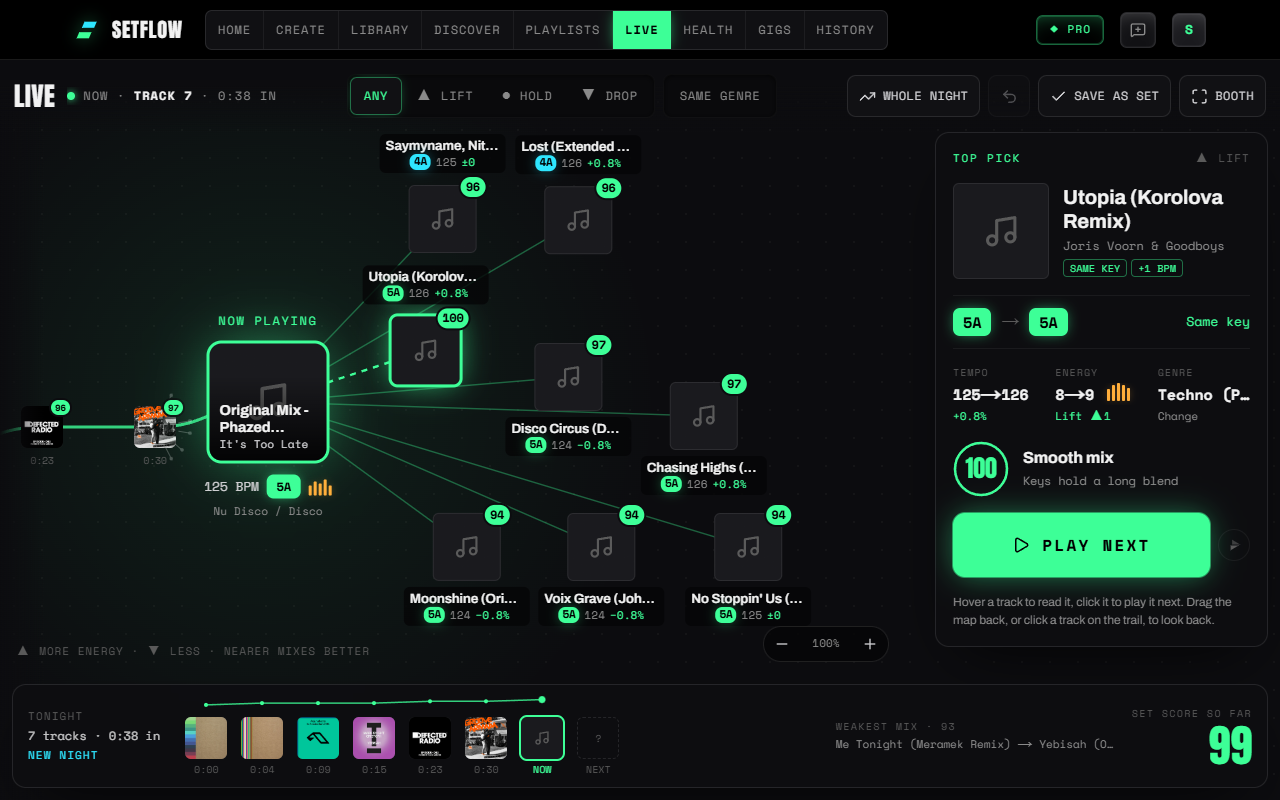
Read the map at a glance
Every track on the map is placed for a reason, so you can choose without reading a list:
- Left to right is the night. The tracks you've played trail off to the left, the track playing now sits in the light, and what could come next fans out to the right.
- Up and down is energy. Tracks fanning upwards lift the room, tracks fanning downwards bring it down, and the ones straight ahead hold it where it is. The trail climbs and dips the same way, so the shape of your night is there to see.
- Distance is the mix. The closer a track sits to the one playing, the better it mixes in, so the best of tonight's options are always nearest. Each cover carries its score: lime is smooth, amber is workable, rose is risky. Each label shows the tempo change, coloured by how big the jump is.
The score is the same one SetFlow's Builder uses for its next-track suggestions: keys that hold a long blend, a tempo you can match without anyone hearing the pitch change, and a sensible step in energy. A track you've already played tonight, in any mix, never comes back, and Live keeps within 8% of the tempo, the most you can beat-match without the key sounding off.
Steer the room
The map's steer decides what fills it. Any gives you a balance. Lift puts most of the tracks above the middle, for when the floor is ready for more. Hold keeps the energy where it is, and Drop lets it breathe. Same genre keeps to the genre that's playing, for a night that shouldn't wander.
Point at a track and the card on the right spells out the move in type you can read at arm's length: the key move, the tempo change, the energy step and the genre, with a note on how to blend it (a key clash says cut or echo out instead). The play button beside Play next lets you hear it from your music folder first.
Play next, and the map follows you
Click a track, or press Play next, and the map follows you there: the track glides into place, the one you were playing joins the trail, and a new fan opens ahead. The tracks you passed up stay as small buds on the trail, so you can see how many roads there were. Tapped the wrong one? Undo puts it back.
Played something that wasn't on the map, a request or a gut call? Choose Played something else? under Play next (or press / on a computer), find it in your library, and the night carries on from it. Looking back at that moment shows what was on offer instead.
Look back at any moment
Drag the map back, or tap any track on the trail, and that moment opens again: the track you played next lit in blue, the tracks you passed up beside it with the scores they had then, and where your pick ranked (the best of eight, or the third). Hover or tap one you passed up to see the move it would have made. Looking back never changes the night; Back to now takes you to the track that's playing.
Whole night zooms out to all of it, with every track, when it started and how its mix landed. Along the bottom, Tonight keeps the night in a strip: each track on its energy line, the set score so far and the weakest mix; click any track there to look back at it. Zoom in and out any time with a pinch, Ctrl or ⌘ and scroll, or the − and + buttons; the zoom stays as the map follows you. When you're done, Save as set puts the night in Set History as a set tagged Played live, ready to export, play again or build on.
Start from anywhere
Live opens from wherever a track already is:
- Your Library: the Live button on any track starts the night from it.
- The player: previewing a track? What's next? opens Live from it.
- A saved set: Carry on live in its menu picks up after its last track, for when the plan runs out and the night doesn't.
- Live itself: search your library for the track that's playing.
Tonight stays on your device, so a reload or a locked phone doesn't lose it. New night, in Tonight, starts over.
Made for the booth
Once the night is running, Live fills the screen: the map takes all of it, and everything else floats on top. The steer and your actions sit along the top, the track you're reading docks on the right, and Tonight runs along the bottom. Covers, labels and Play next grow with the screen, so a laptop beside the decks reads from where you stand. The fan keeps the same shape for every track (lifts up, holds straight on, drops down), so your eye always knows where to look.
Booth mode goes further: one tap hides SetFlow's menus, goes full screen on a laptop or an iPad, shows a big clock and keeps the screen from sleeping mid-set. Your device remembers it for next time. On an iPhone, add SetFlow to your Home Screen for the same full-screen view.
On your phone
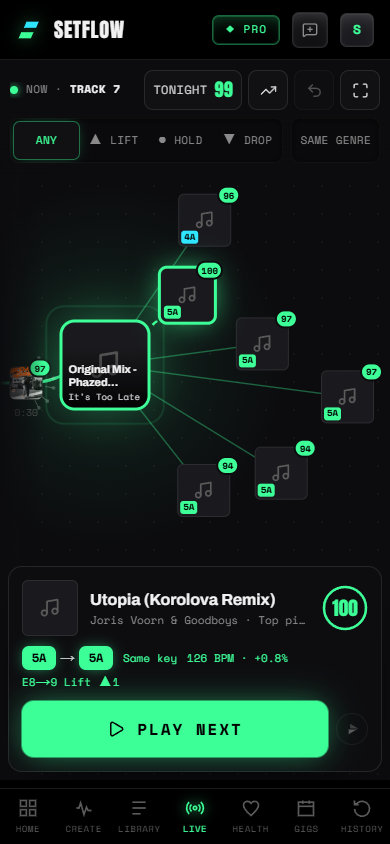
Live is in the phone's tab bar, made for one hand in a dark booth. The fan shows six tracks without labels, each with its key on the cover, and the track you're reading sits in a sheet along the bottom, within reach of your thumb. Tap a cover to read the move, then tap it again, or press the big Play next, to play it. Swipe the map sideways to look back, pinch to zoom, and tap Tonight for the night so far and its set score.
What Live doesn't do yet
SetFlow can't see what your DJ software is playing, so Live follows the tracks you tell it you played. That's one click on a computer and two taps on a phone per track, or a quick search when you go off the map.
Live is part of SetFlow Pro, and a Weekend Pass unlocks it for a gig. On other plans you can look around a first map from your own library. Try SetFlow free for 7 days, import your Rekordbox, Traktor or Serato library, and open Live. See the changelog for everything else that's new.
Frequently Asked Questions
How do I choose the next track when I DJ without a plan?
Start from the track playing now and decide where the room should go: up, steady or down. Then look for a track a step or less away on the Camelot wheel (or its relative major or minor), within about 2% of the tempo, and at the energy you want. SetFlow’s Live does this for your whole library and fans the best options out ahead of the track you’re playing.
What do the positions on the Live map mean?
Left to right is the night: the tracks you’ve played trail behind the one playing now, and what could come next fans out ahead of it. Higher up means more energy and lower down means less. The closer a track sits to the one playing, the better it mixes in, and each cover carries its mix score. Each track’s label shows its tempo change.
Does Live know what I’m playing in Rekordbox, Serato or Traktor?
Not yet. SetFlow can’t see your DJ software, so you tell it the track that’s playing: press Play next on the track you mixed in, or, if you played something that wasn’t on the map, find it with Played something else? Each choice takes one click or two taps.
Can I use Live on my phone in the booth?
Yes. Live is in the phone’s tab bar and fills the screen. The map shows six tracks without labels: tap a cover to read the move, then tap it again (or Play next) to play it. Swipe the map to look back, and pinch to zoom. On a laptop or an iPad, Booth mode hides the menus, goes full screen and keeps the screen awake.
Can I save what I played?
Yes. Save as set puts the night in Set History as a set tagged Played live, with its set score, so you can export it, play it again or build on it. Before you save, you can look back at any moment of the night: what you played next, and what else was on offer.
Is Live free?
Live is part of Pro, and a Weekend Pass unlocks it for a gig. On other plans you can look around a first map from your own library before you upgrade.
Ready to build better sets?
Import your Rekordbox, Traktor, or Serato library and generate perfectly mixed DJ sets in seconds.
Try SetFlow Free