Hear Every Transition Before the Gig
The Mix view puts your set on two decks and walks you through each blend: when to start the next track, when to swap the bass and where the drop lands. You can hear each one before the gig.
The Mix view is part of Pro. Without Pro it shows a preview: your own set, transition by transition, with keys and tempos, and what Pro adds to each one.
Connect your music folder
To find where each track mixes in and out, SetFlow needs the audio. It reads your files in your browser and never uploads them; only what it finds is saved to your account.
- In Library, press Connect music folder and pick the folder your music is in. The Mix view offers the same button.
- In Chrome or Edge on a computer, SetFlow remembers the folder. If it later shows Allow access, press it to let the browser read the folder again.
- In Safari or Firefox on a computer, press Choose music folder in the Mix view. These browsers can't remember it, so you choose it again next visit; what SetFlow finds is still saved.
- On a phone, the Mix view shows what you've analysed on a computer, but can't read your files itself.
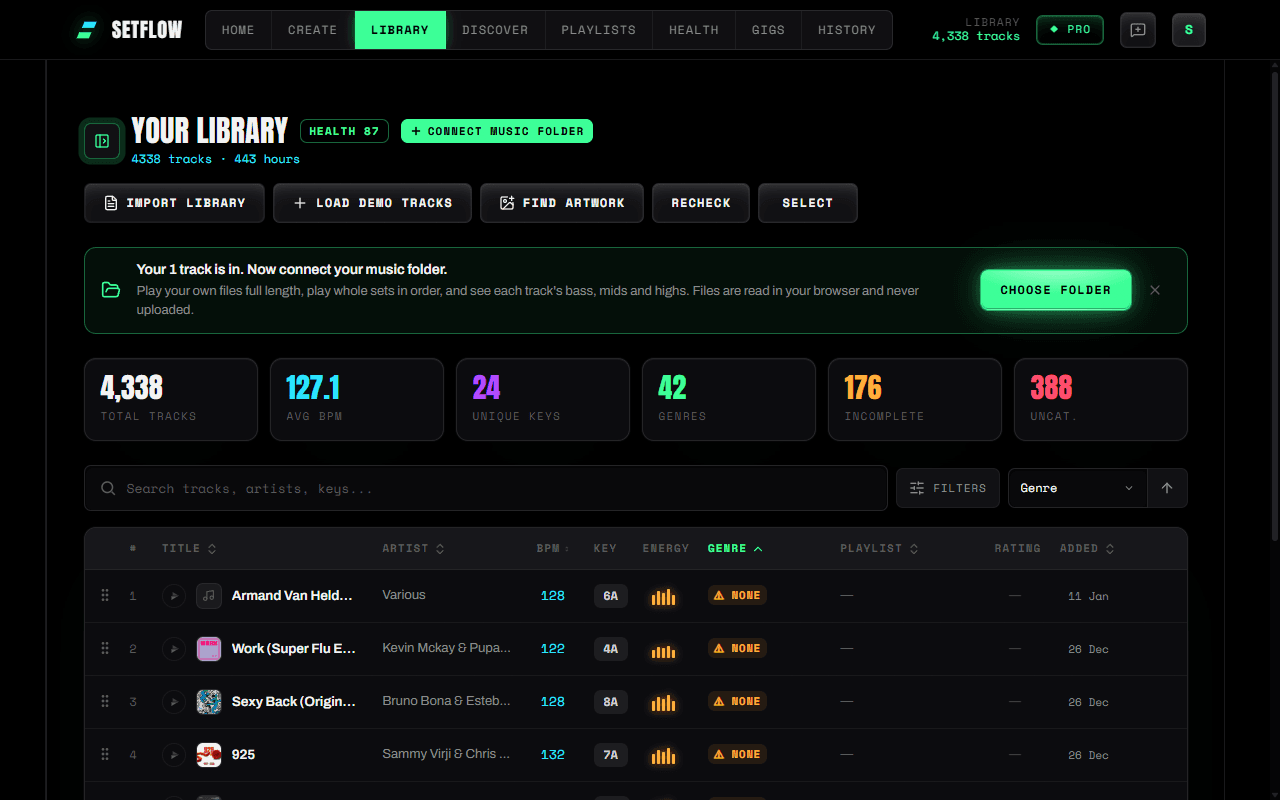
SetFlow finds each track by its file name from your import, or by its artist and title. A track it can't find is marked “not in your music folder” and estimated from your library instead. AIFF and ALAC files can't be read in the browser, so they're estimated too.
Open the Mix view
On Create, open a set and press Mix view. The first time, SetFlow analyses each track in the set and shows its progress. The results are saved to your account, so the next time, on any device, they're already there.
Let DJ Tutor walk you through each blend
The Mix view puts the set on two decks. Pick a transition and DJ Tutor shows each move on the decks and the mixer: when to start the next track, when to swap the bass, and where the drop lands.
- Hear the blend plays the transition you've picked; Play the mix plays the set from one transition to the next.
- Change how long a blend is, for one transition or for the whole set.
- If the energy drops between two tracks, the Mix view flags it and offers tracks that keep it up.
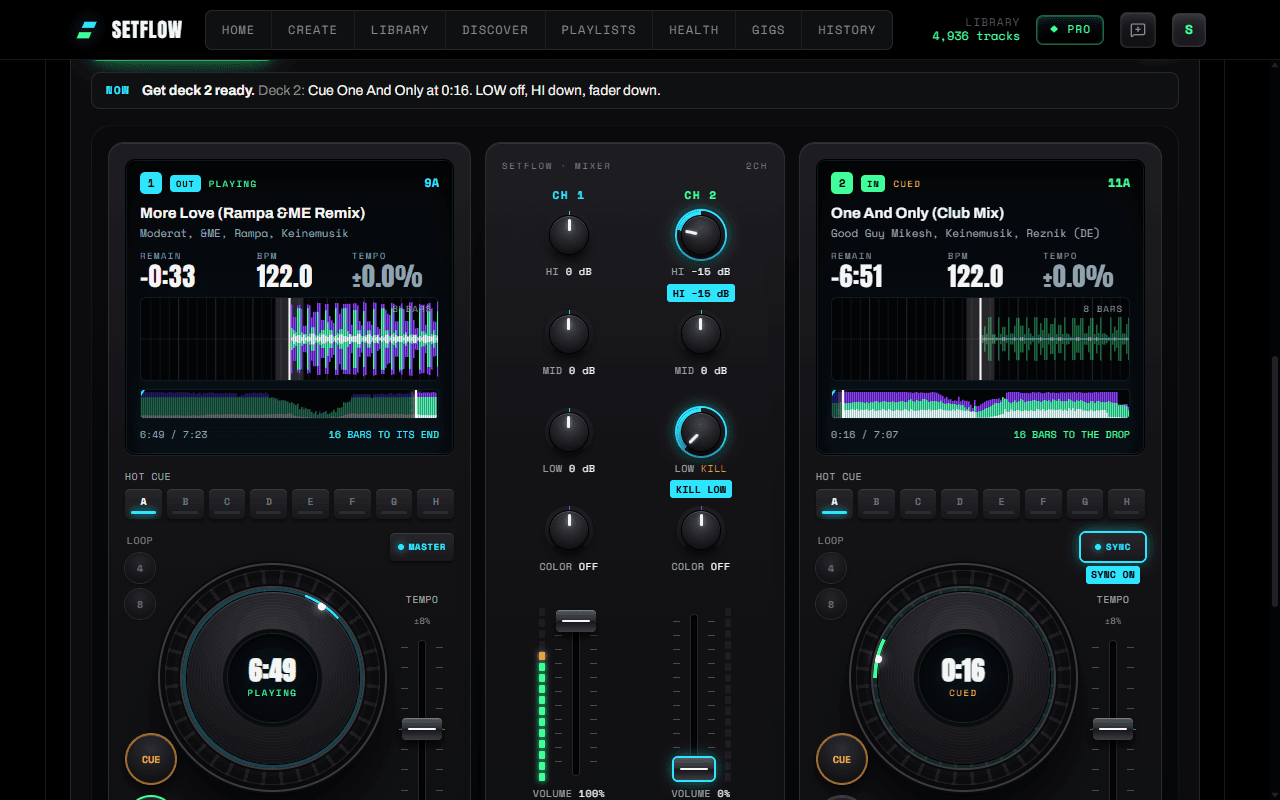
New to blending? The Learn to DJ path explains phrasing, bass swaps and when to start the next track, one step at a time.
Questions
Does the Mix view upload my music?
No. Your files are read in your browser and never uploaded. Only what SetFlow finds, such as where each track mixes in and out, is saved to your account.
Can I use the Mix view on my phone?
Your phone shows the tracks you have already analysed on a computer. To analyse the rest, open the set in Chrome or Edge on a computer, or choose your music folder in Safari or Firefox on a computer.