Play Your DJ Set in Order Before the Gig
You've built the set. Before you load it onto USB, you want to hear it the way the crowd will: in order, one track into the next, with the key changes where you put them. SetFlow can now play a whole set from your own music folder, start to finish, in the browser.
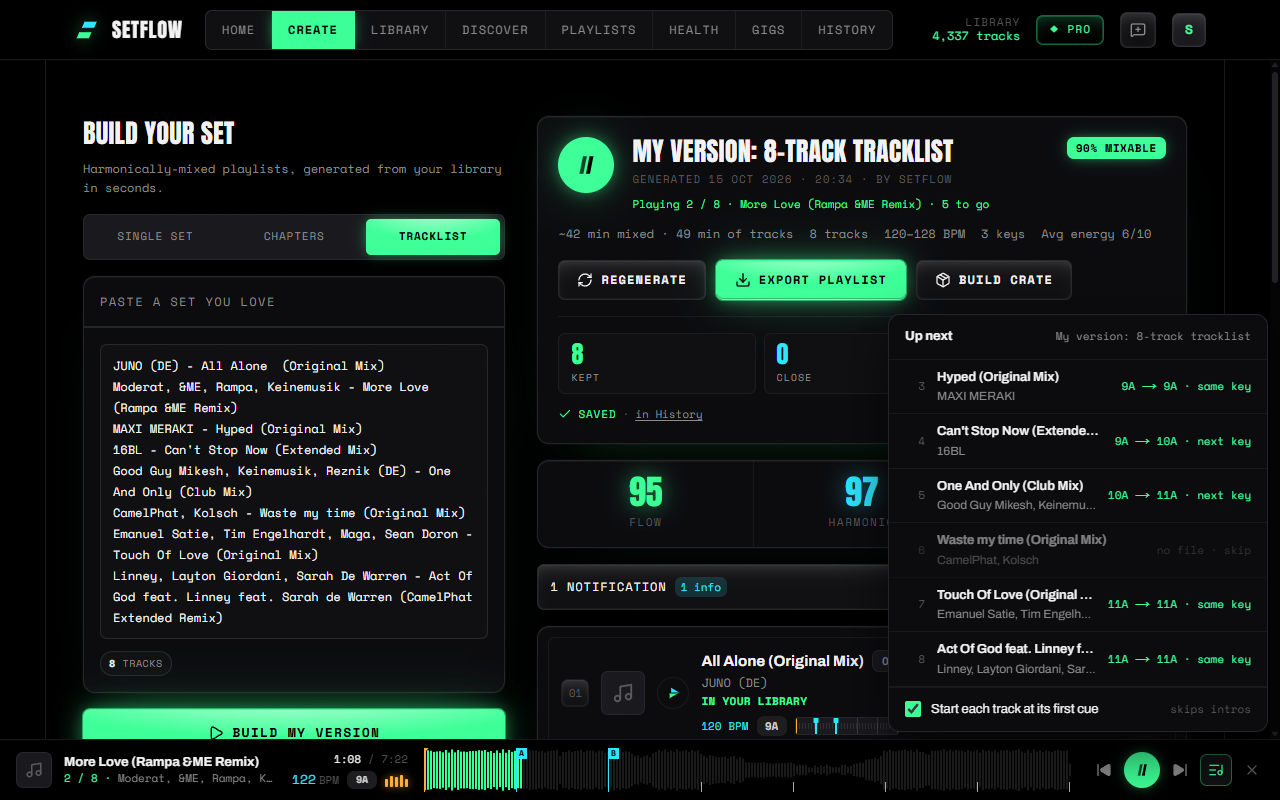
Press play on the set
Every set has a lime play button before its name: at the top of a set you've just generated on Create, and on each set in History. Press it and the first track starts. When it ends, the next one starts, all the way to the end of the set. Press it again to pause.
While it plays, the set's header shows where you are (“Playing 3 / 14”) and how many tracks are left, and the track that's playing glows in the list.
Previous, next and Up next
The player at the bottom of the page gets previous and next buttons, and shows which number in the set you're on. Previous goes back to the start of the track, and a second press goes to the track before, like any music player.
Up next lists the rest of the set. Next to each track is the key move into it, such as 8A → 9A · next key, so you can hear whether a transition works while you look at why. Click any track there, or press play on any row of the set, and the set jumps to it and carries on from there.
Start each track at its first cue
A set played from the top of every intro takes twice as long as it needs to, and the intros aren't what you need to hear. With Start each track at its first cue on (it is by default), each track starts at the earliest cue you set in Rekordbox or Traktor: a hot cue, a memory cue, the load point or a fade-in. A cue in the first few seconds doesn't count (Rekordbox puts one on the first beat of every track it analyses), and a track without any other cue starts from the top. You can turn it off at the bottom of Up next.
Your cues come in when you import your library, and they're drawn on the waveform in the player, so you can see where each track started.
Tracks that aren't in your folder
A set can include tracks that aren't on this computer, such as ones you own on a different drive. Those tracks are skipped and the set carries on. Hover the play button to see how many will be skipped before you start, and Up next marks each one with “no file”.
What you need
- A desktop Chromium browser: Chrome, Edge, Brave, Arc or Opera. Phone browsers, Safari and Firefox can't open a music folder from a web page yet, so the play button doesn't appear there.
- Your music folder connected in Settings. See preview DJ tracks in the browser for how that works. Your files never leave your computer.
Try SetFlow free for 7 days. Import your library, generate a set and press play.
Frequently Asked Questions
Where does the music come from when I play a set?
From the music folder on your computer that you connect in Settings. SetFlow plays your own files in the browser, one after another. Nothing is uploaded and nothing is streamed from anywhere else.
What happens to tracks that aren’t in my music folder?
They are skipped, and the set carries on with the next track that is. The play button tells you how many tracks will be skipped before you press it, and the Up next list marks each one.
Does SetFlow mix the tracks together?
No. It plays each track in turn, like a playlist, so you can hear the order and the key changes. With “Start each track at its first cue” on, each track starts at the first cue you set in Rekordbox or Traktor, which gets you close to where you would bring it in.
Can I play a set on my phone?
Not yet. Phone browsers can’t open a music folder, so the play button only appears in desktop Chrome, Edge, Brave, Arc and Opera. Safari and Firefox on a computer can’t open one either.
Can I start from the middle of a set?
Yes. While a set is playing, press play on any of its tracks, or pick one in Up next, and the set carries on from there.
Ready to build better sets?
Import your Rekordbox, Traktor, or Serato library and generate perfectly mixed DJ sets in seconds.
Try SetFlow Free