How to Build a Custom DJ Set with the Playlist Builder
The playlist builder gives you full control over every track, every transition, and the overall energy arc of your set. Unlike auto-generated sets, manual building lets you craft exactly the journey you want — placing specific tracks at specific moments for maximum impact.
Getting Started
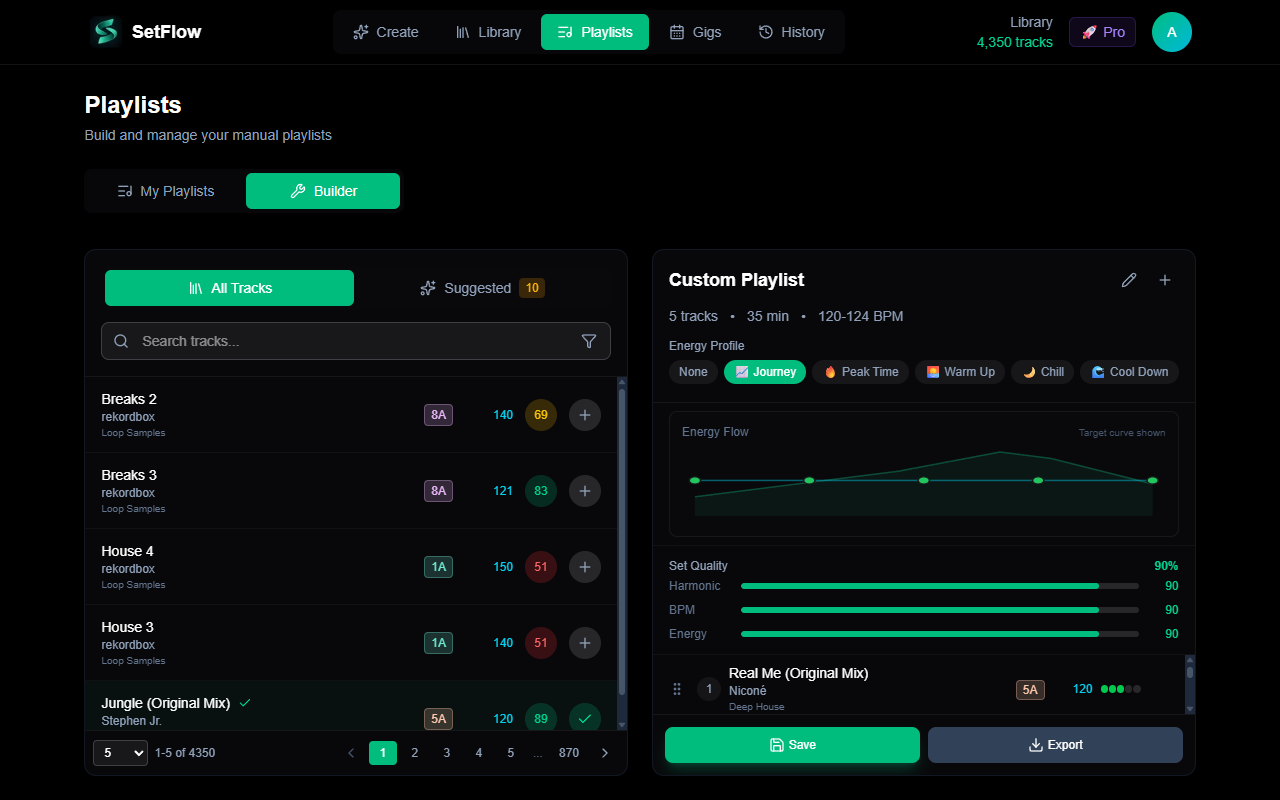
Navigate to the Playlists page and switch to the Builder tab. Give your playlist a name at the top — something descriptive that helps you find it later, like “Saturday Warm-Up 122–128” or “Tech House Peak Time.” You can always rename it before saving.
Adding Tracks from Your Library
The Library tab on the right shows your full track collection. Use the search bar to find tracks by title or artist, or scroll through the list. Click a track to add it to the end of your playlist. Each track shows its BPM, key, and energy level so you can make informed choices as you build.
Think about your opening track carefully — it sets the tone for everything that follows. If you're building a warm-up set, start with something around energy 3–4. For peak time, you might open at 7–8 and stay there.
Using Suggested Tracks
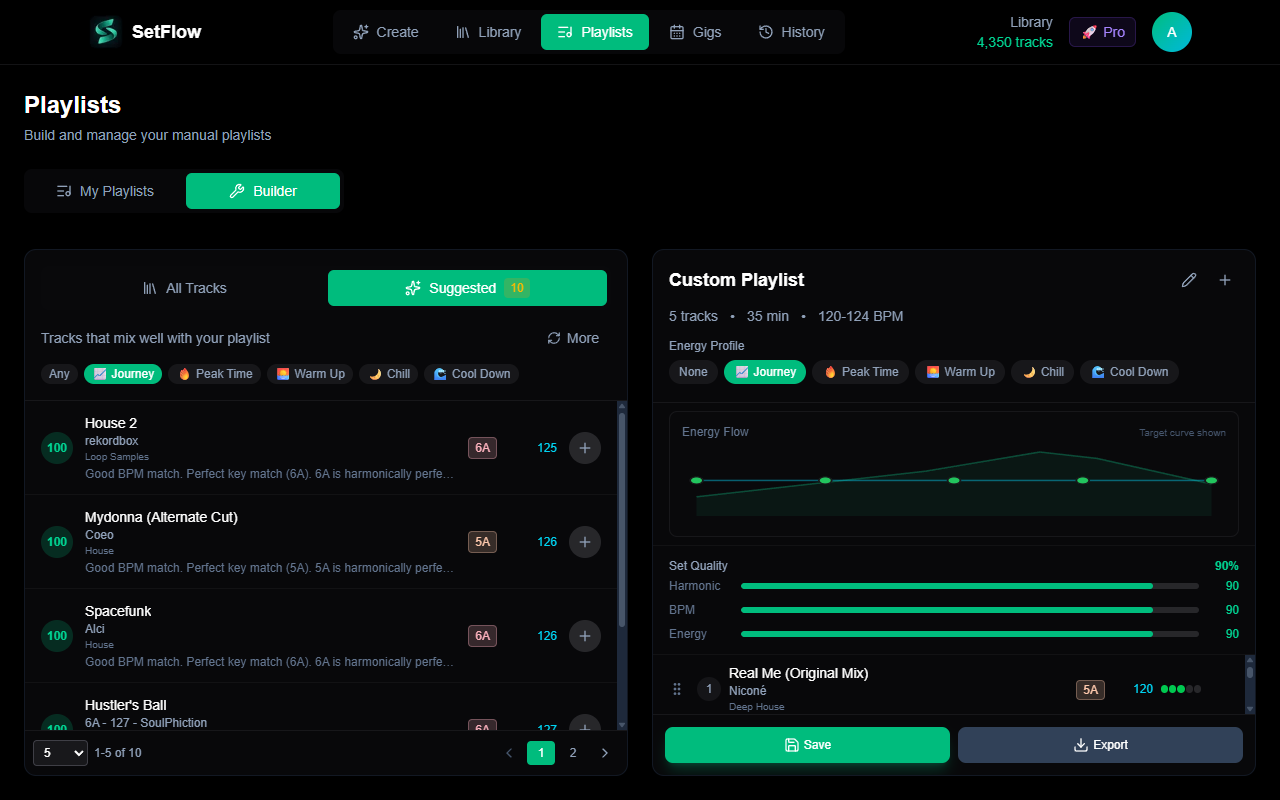
Switch to the Suggested tab to see tracks scored by compatibility with your current playlist. The algorithm considers harmonic compatibility, BPM matching, and energy flow to surface tracks that would make smooth transitions from your last added track.
Use the energy profile filter to narrow suggestions by energy curve. If you're building a journey set and you're in the build-up phase, filter for tracks that match an ascending energy profile. This keeps suggestions relevant to where you are in the set.
Reading the Energy Curve
The energy curve chart at the top of the builder is your visual guide to the set's arc. It shows two layers:
- The target line — A smooth curve representing the ideal energy shape for your selected energy profile. This is your guide, not a rule.
- The actual dots — Each dot represents a track's energy level at its position in the playlist. These show what your set actually looks like.
When the dots follow the line closely, your set's energy flow matches the intended profile. Gaps between the line and dots highlight areas where you might want to swap a track or insert something to smooth the arc. A sudden spike above the line means a track is higher energy than the profile expects at that point — which might be intentional (a surprise peak) or a sign to reorder.
Understanding Quality Scores
Below the energy curve, three color-coded progress bars show the overall quality of your playlist:
- Harmonic — What percentage of transitions are harmonically compatible (same key, adjacent on the Camelot wheel, or relative major/minor). Aim for 70%+ for a smooth-sounding set.
- BPM — What percentage of transitions have BPM differences within the acceptable range (≤4% is good, ≤2% is perfect). Higher percentages mean less noticeable tempo shifts.
- Energy — How closely your track energies follow the selected energy profile. 80%+ means your set will feel intentional and well-structured.
If a score is low, scroll through your tracklist and look for the transitions causing problems. Often swapping just one or two tracks can jump a score from 50% to 80%.
Reordering and Removing Tracks
Drag and drop tracks in the playlist to reorder them. This is where the energy curve becomes especially useful — you can see in real time how moving a track changes the overall arc. If a high-energy track landed too early, drag it further down the list and watch the curve update.
To remove a track, click the remove button next to it. If you want to start fresh, click New playlist to clear everything and begin again.
Saving and Exporting
When you're happy with your playlist, hit Save to store it to your account. Saved playlists persist across sessions and devices — you can start building on your laptop and review on your phone before the gig.
To use your playlist with DJ software, export it as an M3U8 file. This format is compatible with Rekordbox, Traktor, and most media players. Import the M3U8 into Rekordbox to load the playlist directly onto your USB drives for CDJ playback.
Managing Your Playlists
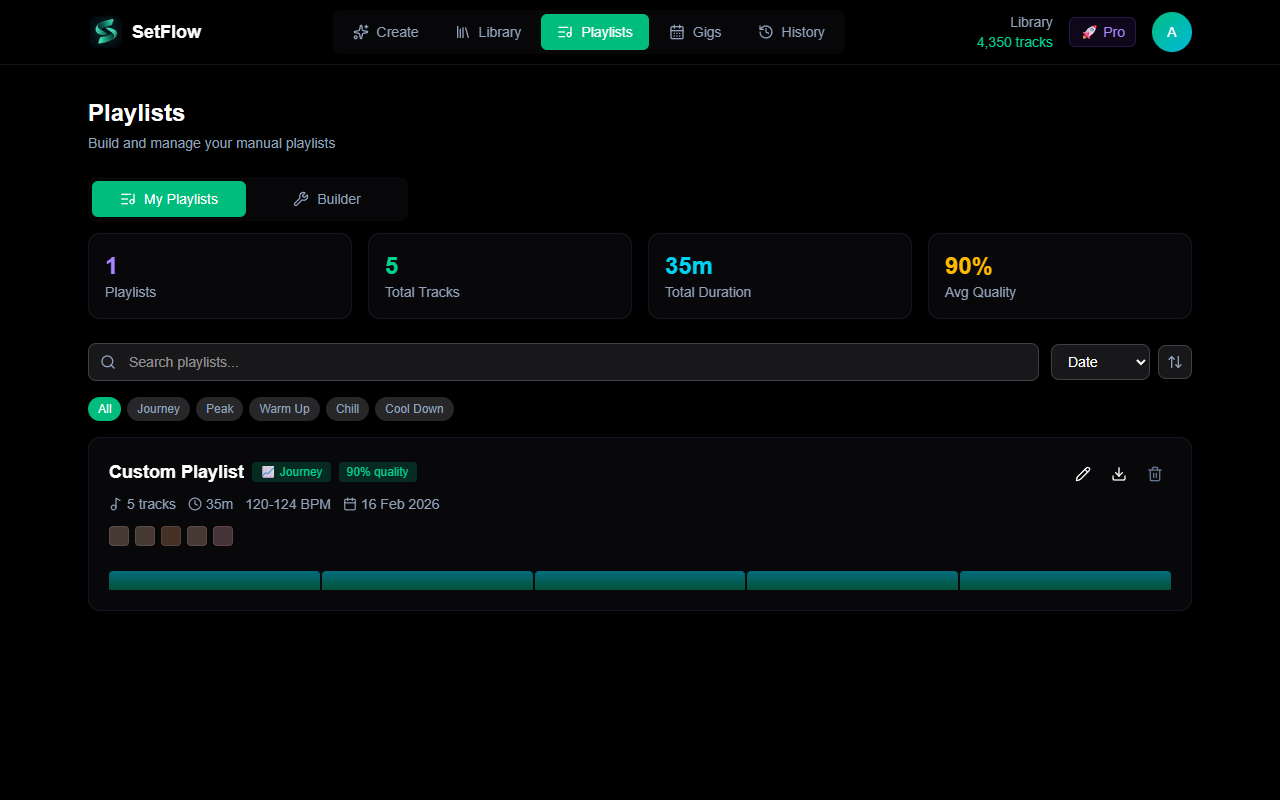
The My Playlists tab shows all your saved playlists as stat cards. Each card displays the playlist name, track count, total duration, and quality scores at a glance. Use the search bar to find playlists by name, or filter by energy profile.
Click a playlist card to load it into the builder for editing. You can tweak tracks, reorder, add new ones, and save the updated version. To delete a playlist you no longer need, use the delete button on the card.
Your manually-built playlists also appear in Set History alongside algorithm-generated sets. They're marked with an amber Manual Build badge so you can tell them apart at a glance. Use the Source filter pills in Set History to show only manual builds, library sets, or crate-sourced sets.
Tips for Great Manual Sets
- Start with an anchor track — Pick the one track you definitely want to play, place it where it fits best (usually a peak moment), then build outward from there.
- Follow the energy profile — Choose a profile that matches your time slot and let the curve guide your track selection. A warm-up set shouldn't peak at track 3.
- Use suggestions to fill gaps — After placing your key tracks, use the suggested tab to find compatible tracks that bridge the gaps. The algorithm handles harmonic and BPM matching so you can focus on vibe.
- Check all three quality bars — A set can score 90% on harmonic compatibility but 40% on energy. Balance all three dimensions for the best result.
- Save versions — If you're experimenting with different arrangements, save each version as a separate playlist. You can compare them side by side in My Playlists.
Quick Reference
The playlist builder works best when your tracks are well tagged in Rekordbox. Accurate BPM, key, genre, and energy data means better suggestions, more meaningful quality scores, and an energy curve that actually reflects your set.
Ready to build better sets?
Import your Rekordbox, Traktor, or Serato library and generate perfectly mixed DJ sets in seconds.
Try SetFlow Free