Gig Calendar Update: Find the Right Set for Every Gig in Seconds
The Gig Calendar lets you schedule bookings and link prepared sets to each one. But when your set library grows to 50, 100, or 200+ sets, finding the right one for a specific gig slot needs to be fast. The latest update to set linking in the Gig Calendar puts the right information front and centre so you can match sets to gigs in seconds.
The Challenge: Growing Set Libraries
As you generate more sets over time, a simple list of names stops being useful. You need to know at a glance what energy profile a set follows, what genre it targets, how long it runs, and what BPM range it covers. Without that context, linking the right set to an upcoming gig becomes guesswork.
The improved set linking experience in the Gig Calendar solves this with richer set cards, energy profile filters, full-text search, and sort controls — all designed to help you find the right set without scrolling through everything.
Rich Set Cards at a Glance
When you click “Link Set” on a gig card, each set is now shown as a rich card with four rows of information:
- Set name with a link/unlink action icon on the right
- Badges showing the energy profile (with its icon), genre, and crate source if the set was built from a Manual Crate, Smart Crate, or Manual Build
- Stats — track count, duration, BPM range, and creation date
- Star rating (if you've rated the set) plus a mini energy bar showing the energy levels of the first eight tracks as a tiny bar chart
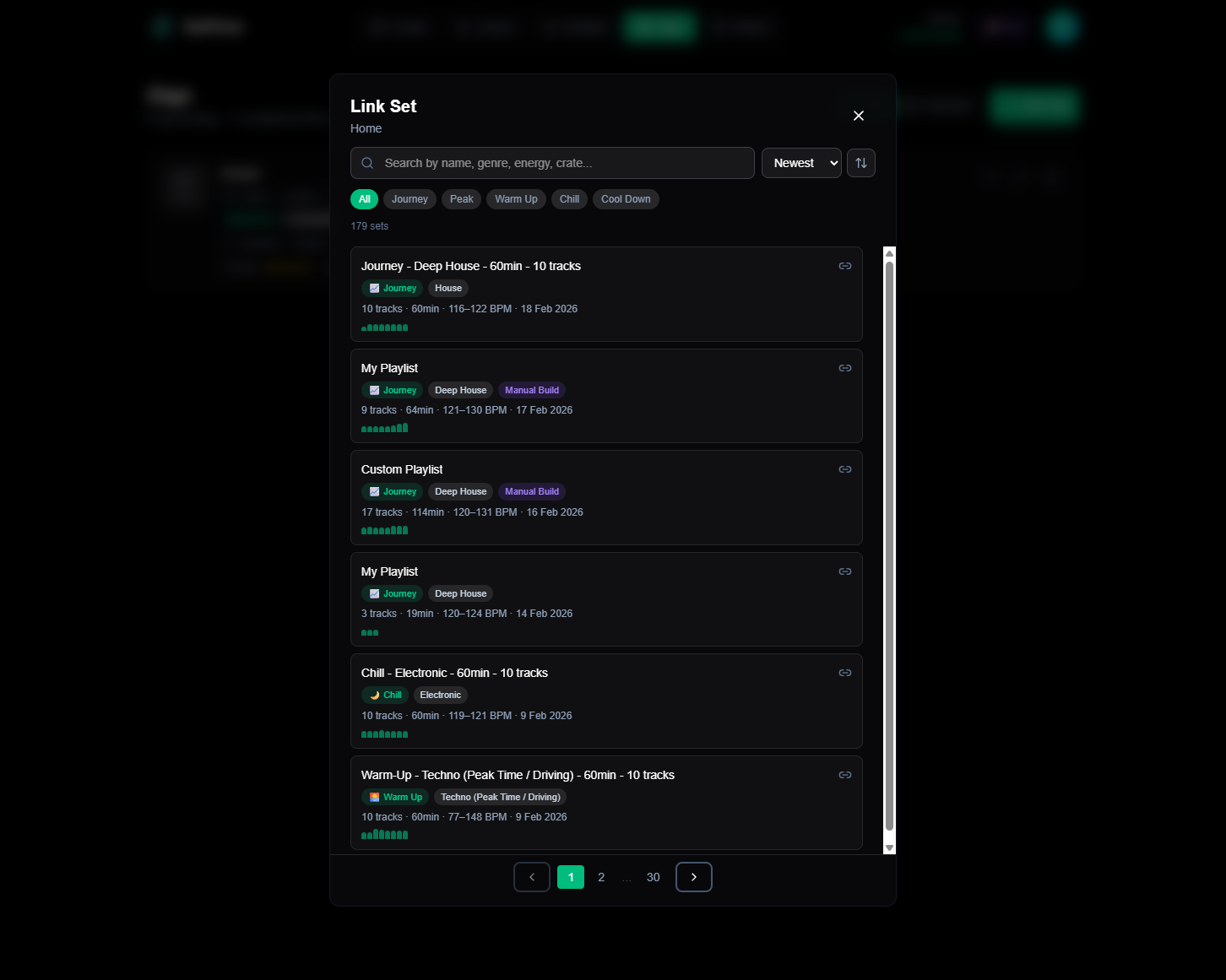
This density of information means you can visually scan for the right set without clicking into anything. The emerald energy profile badge and genre badge are colour-coded so they pop out even when scrolling quickly.
Filter by Energy Profile
The row of filter pills at the top lets you narrow sets by energy archetype: Journey, Peak, Warm Up, Chill, or Cool Down. If you know your gig slot is a warm-up, one click filters out everything that isn't a warm-up set.
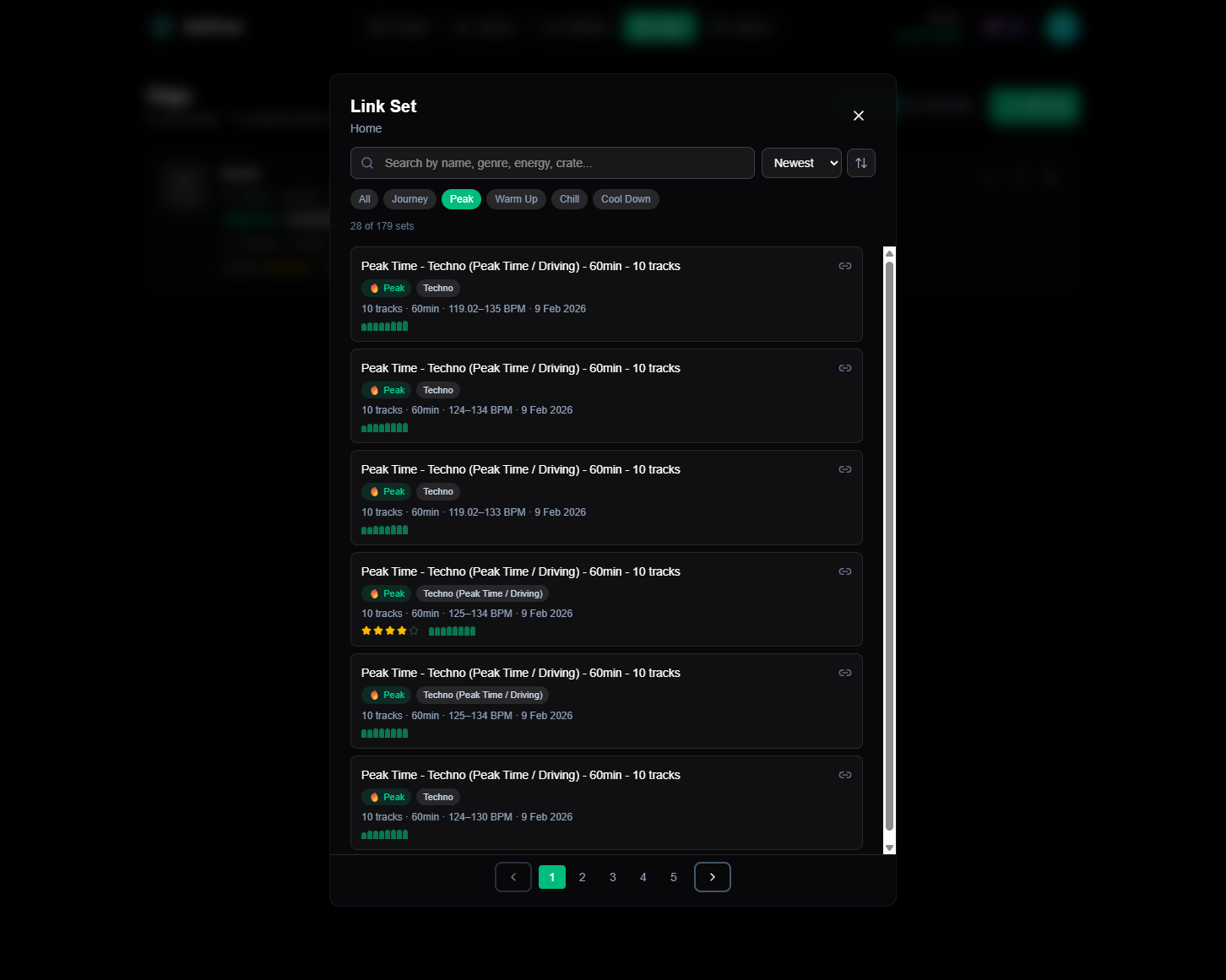
The results count updates live as you filter, showing “24 of 113 sets” so you always know how much you've narrowed the list. Clicking the active filter again (or clicking “All”) clears it and returns to the full list.
Search Across Everything
The search bar doesn't just match set names. It searches across:
- Set name — the name you gave the set when generating or building it
- Genre — “deep house”, “techno”, “electronica”
- Energy profile — type “journey” or “warm up” to find matching profiles
- Crate names — if a set was generated from a crate, the crate name is searchable
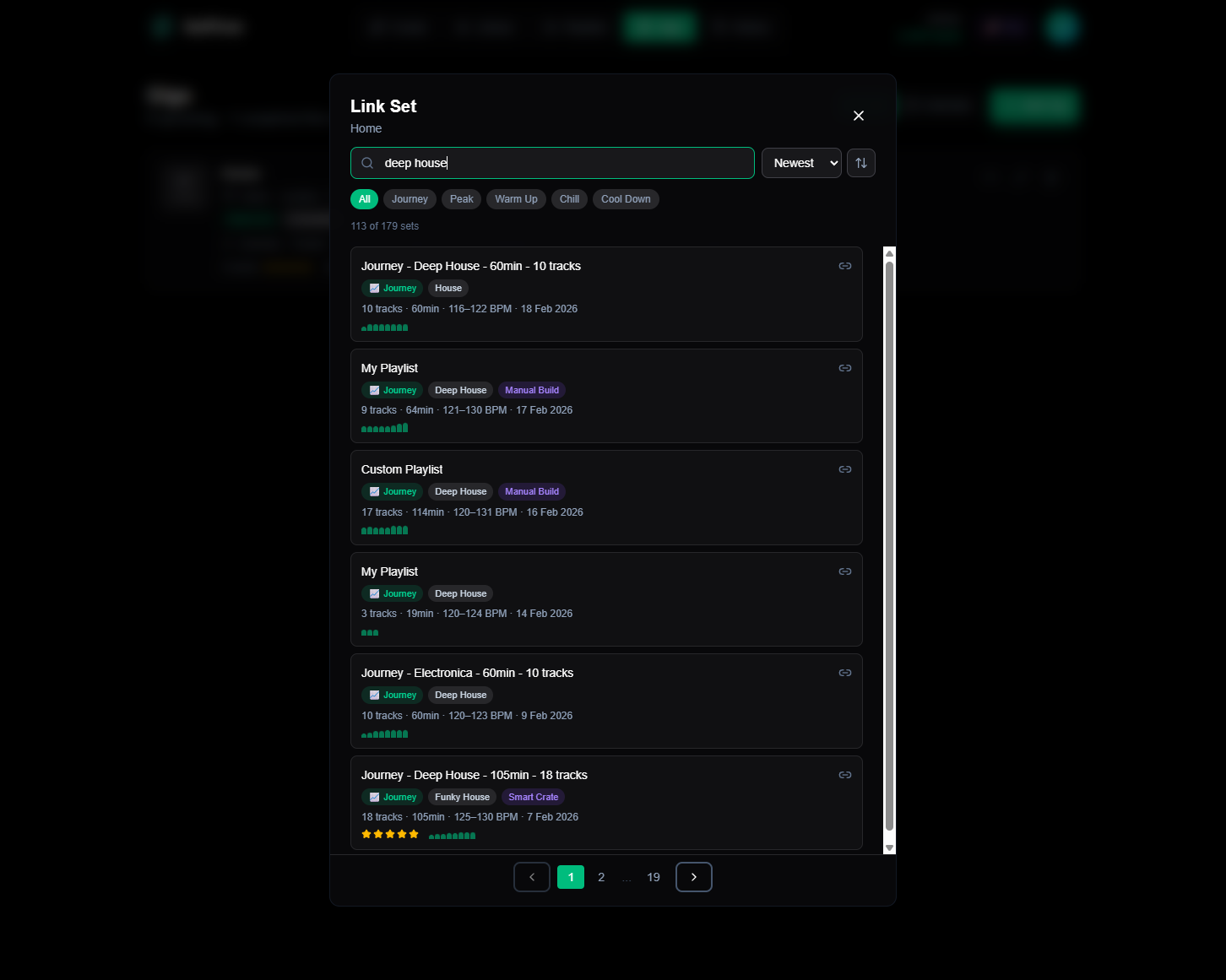
Search and energy filters work together. You can filter to “Peak” sets and then search for “techno” to find exactly the peak-time techno set you built last week.
Sort Your Way
The sort dropdown lets you order sets by:
- Newest (default) — most recently created first
- Rating — highest-rated sets first, useful when you've rated your sets after playing them
- Duration — find shorter or longer sets depending on your gig slot
- Tracks — sort by track count to match the complexity you need
The ascending/descending toggle next to the dropdown flips the order. Combined with filters, this gives you precise control: “Show me my highest-rated warm-up sets” is just two clicks.
Linking and Unlinking
Clicking a set card links it to the gig. The card highlights with an emerald border and the icon changes to an unlink symbol. Click again to unlink.
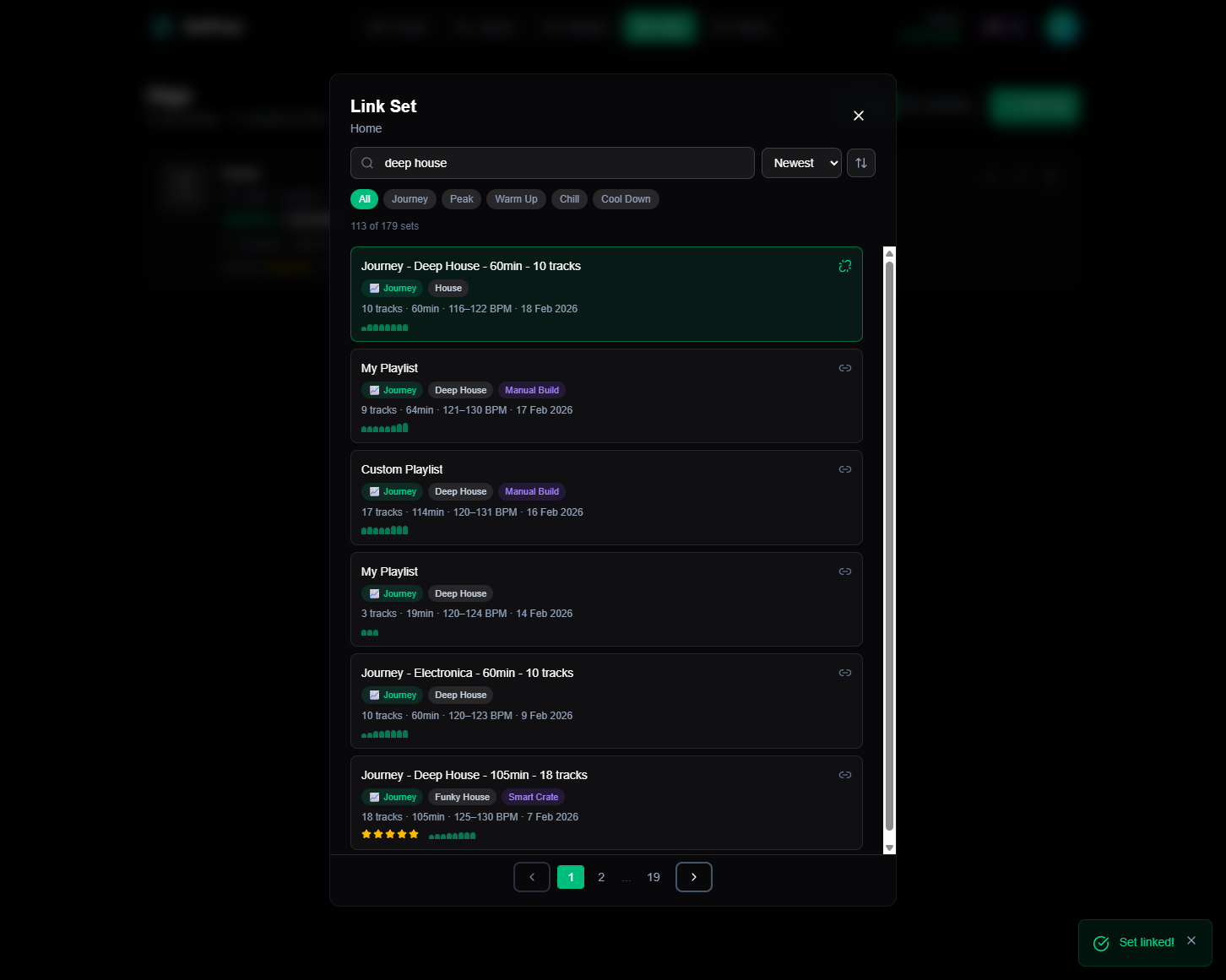
Sets that are already linked to a different gig appear greyed out with an amber “Linked to another gig” warning, preventing accidental double-linking. You can link multiple sets to the same gig if your slot calls for it.
Pagination That Scales
With 6 sets per page and windowed page numbers, the modal handles libraries of any size without scrolling issues. If you have 30 pages of sets, the pagination shows the current page, its neighbours, and jumps to the first and last page with ellipsis in between. Changing any filter or search term resets to page 1 automatically.
Putting It All Together
The workflow for preparing a gig is now:
- Schedule a gig in the Gig Calendar with your time slot
- Click “Link Set” and filter by energy profile to match your slot
- Search by genre or crate name to narrow further
- Sort by rating to surface your best sets
- Click the right set to link it — done
Finding the right set for a gig now takes a couple of clicks instead of scrolling through everything. The richer cards mean you spend less time second-guessing and more time preparing for the gig itself.
Quick Reference
The Gig Calendar works hand-in-hand with the rest of SetFlow. Generate sets from your Playlist Builder, link them to gigs, rate them after playing, and use those ratings to quickly find your best material next time. The more you use the system, the faster gig prep becomes.
Ready to build better sets?
Import your Rekordbox, Traktor, or Serato library and generate perfectly mixed DJ sets in seconds.
Try SetFlow Free