Serato Import: How to Import Your Serato DJ Library & Crates
SetFlow now supports Serato DJ. Point us at your _Serato_ folder, import every track and crate in seconds, generate harmonically-mixed sets using the same Camelot wheel matching and energy curves that Rekordbox and Traktor users already rely on, then export the result back as a .crate file you drop straight into _Serato_/Subcrates/. Your cue points and beatgrids stay in Serato, untouched.
Why Serato Support?
Serato DJ Pro is one of the two most popular DJ platforms in the world. Until now, Serato users had no way to bring their library into SetFlow — which meant no harmonic-set generation, no energy-curve planning, and no smart crate filtering for that audience.
That changes today. The new Serato integration brings full library import, full crate import, and a brand-new round-trip .crate exporter — all built directly into the existing Library and Set Builder workflows.
What's Different About Serato
Rekordbox and Traktor both export their entire library as a single XML/NML file. Serato doesn't. Serato keeps everything inside a folder called _Serato_: a binary database V2 file that holds your track list, plus a Subcrates/ directory with one .crate file per crate (and another for nested sub-crates). On macOS that folder lives at ~/Music/_Serato_; on Windows it's usually C:\Users\you\Music\_Serato_, with a copy at the root of every drive Serato has ever touched.
We built a binary parser from scratch that reads database V2 and every .crate in Subcrates/ directly in your browser. Nothing is uploaded to our servers — your music files never leave your device, and we never touch the GEOB tags inside your audio files where Serato stores your cue points and beatgrids.
Importing Your Serato Library
Open the Library, click Import Library, and you'll see a third tab alongside Rekordbox and Traktor.
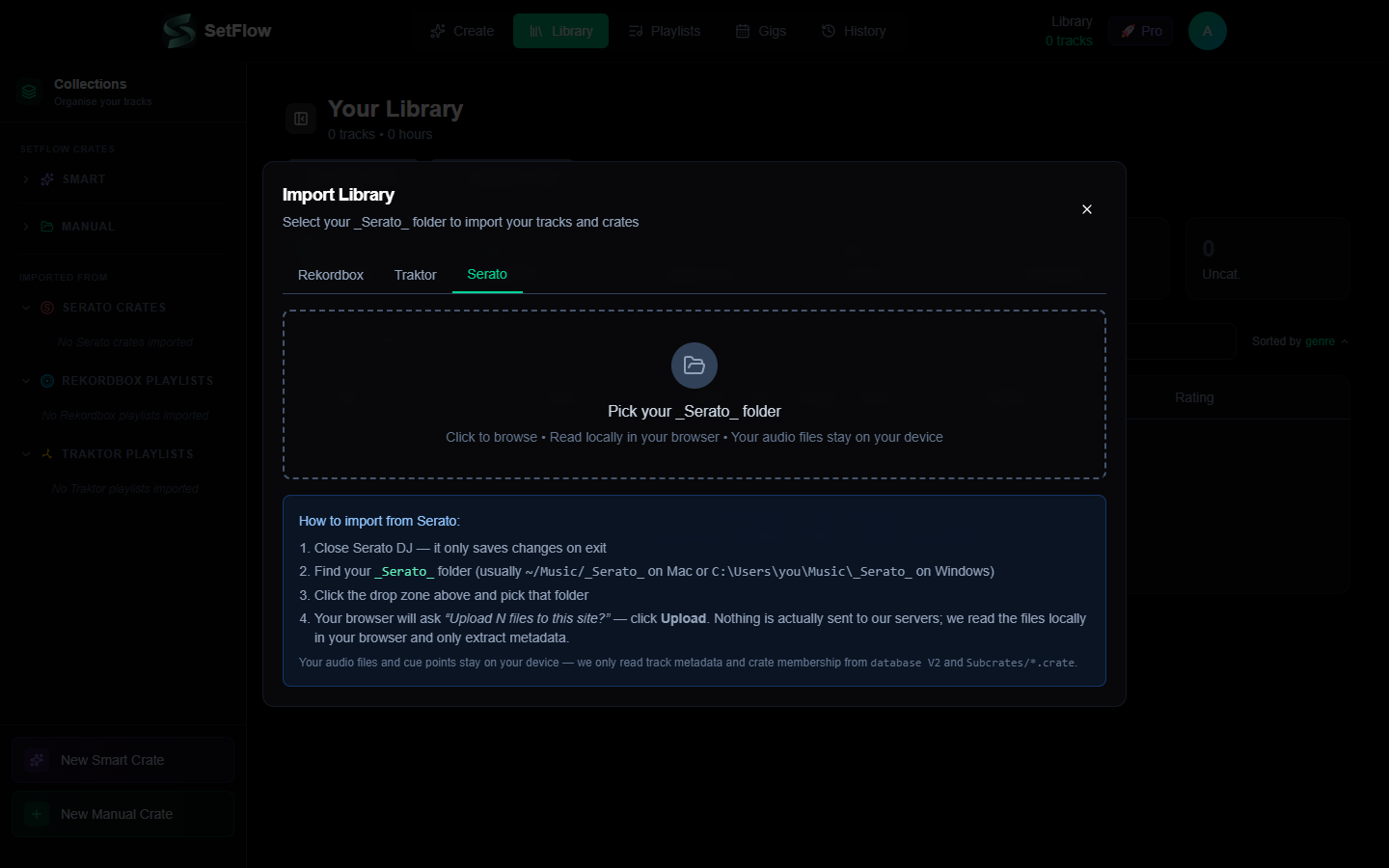
The flow is four steps:
- Close Serato DJ first. Serato only flushes its
database V2on a clean exit, so any unsaved analysis or crate edits need to be persisted first. - Click the drop zone and pick your
_Serato_folder. - Your browser asks “Upload N files to this site?” — this is a Chrome / Edge security prompt for any folder upload. Click Upload. Nothing actually goes to our servers — we only read
database V2and the.cratefiles inside your browser. - SetFlow filters down to just those files, parses them in a Web Worker so the UI stays responsive, and shows you the results.
The Parse Preview
Within a couple of seconds you see a complete summary: how many tracks were parsed, how many crates were discovered, which tracks were skipped (and why), and a preview of the first five tracks with BPM and Camelot-converted keys.
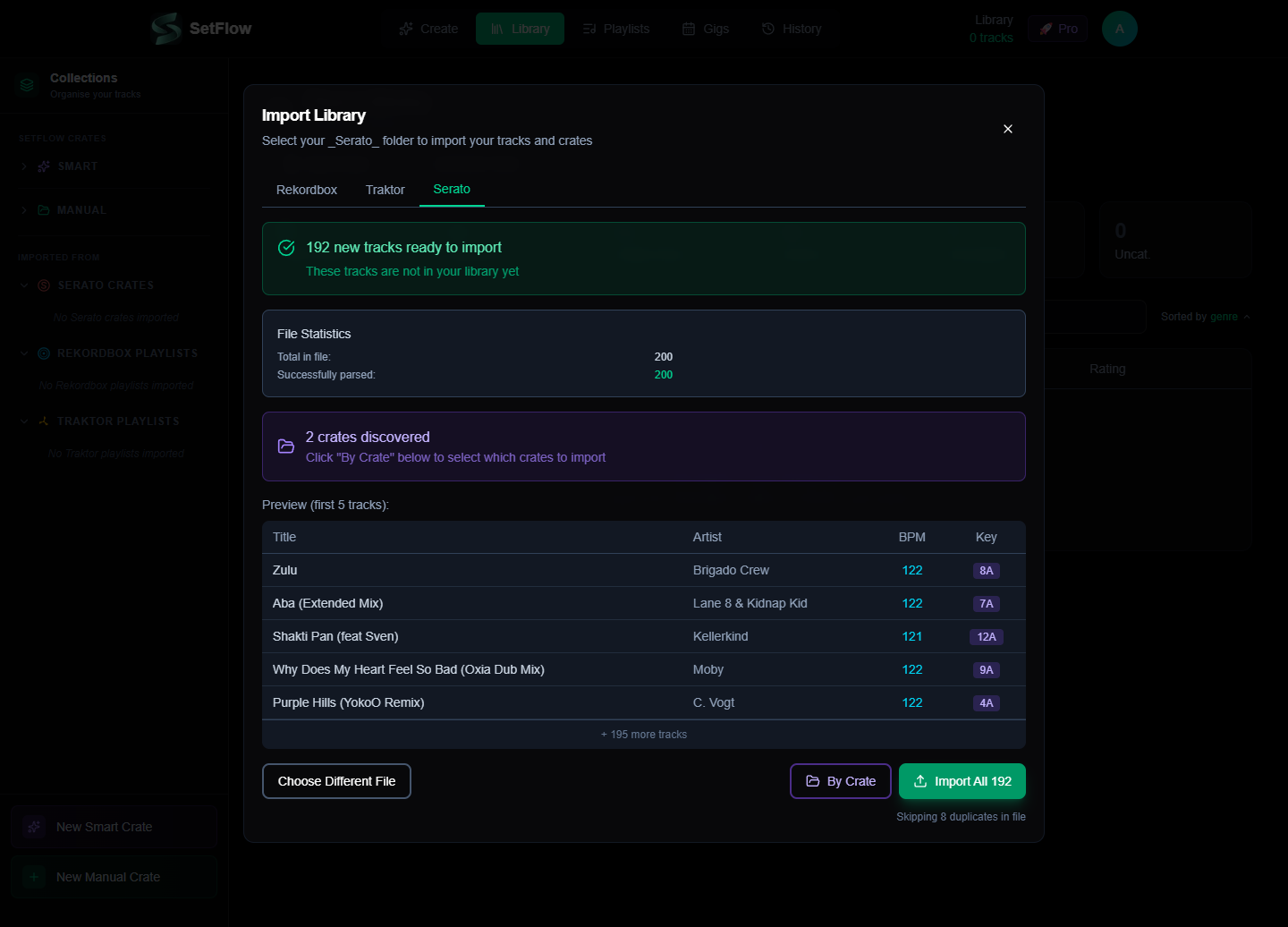
From here you have two import paths:
- Import All — brings everything in: tracks, crates, and crate membership preserved.
- By Crate — only import tracks from the crates you care about. Useful for partial imports or when you want to focus on a specific genre folder.
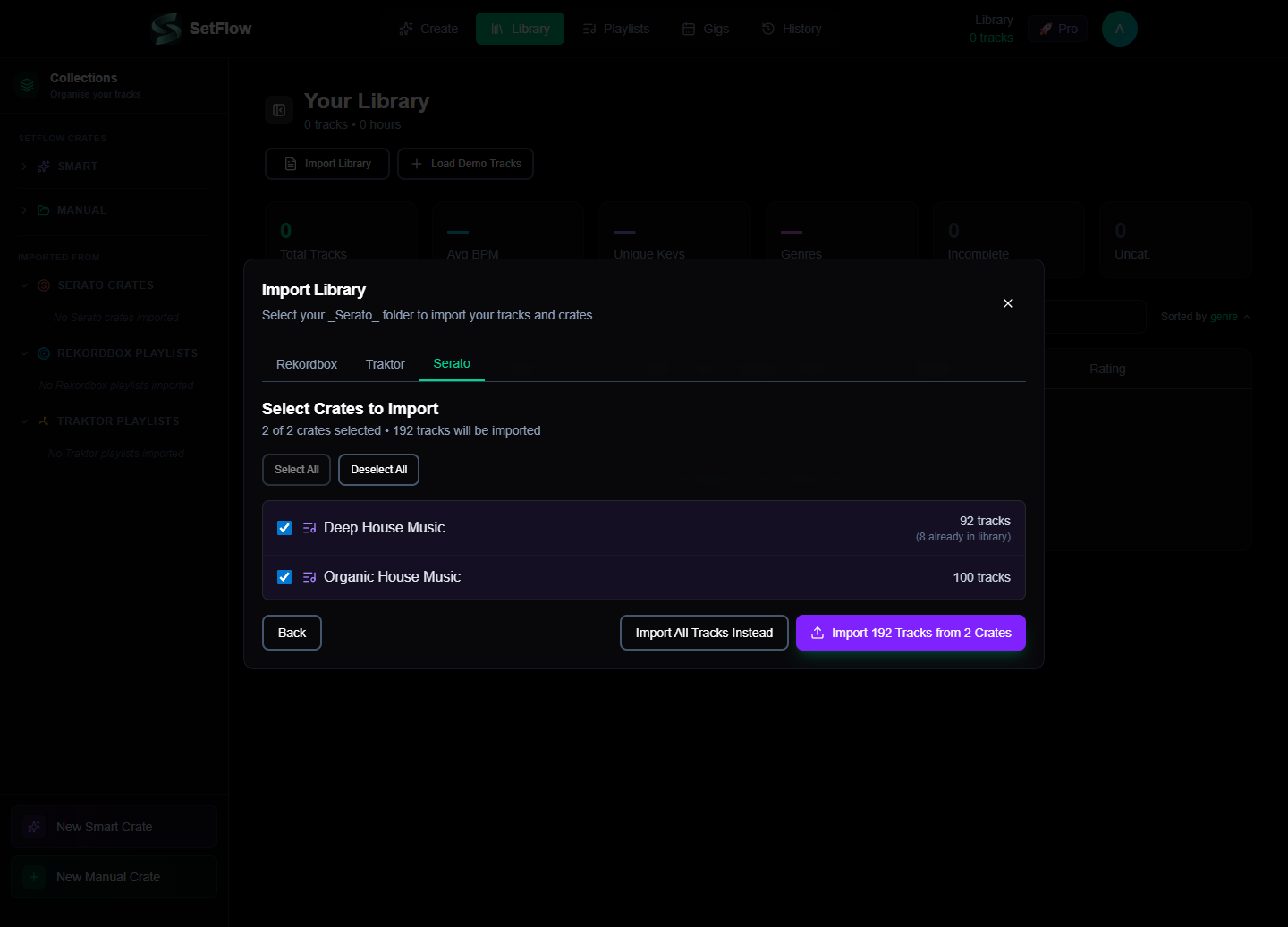
Whichever path you choose, your crates and crate membership are preserved. SetFlow even understands Serato's %% nested-folder convention — a crate named Deep House%%2024.crate in your Subcrates folder shows up in SetFlow as Deep House / 2024.
Crates In The Sidebar
We've restructured the Library sidebar to clearly separate SetFlow-native crates (your own Smart and Manual crates created inside the app) from imported collections (Rekordbox playlists, Traktor playlists, and Serato crates).
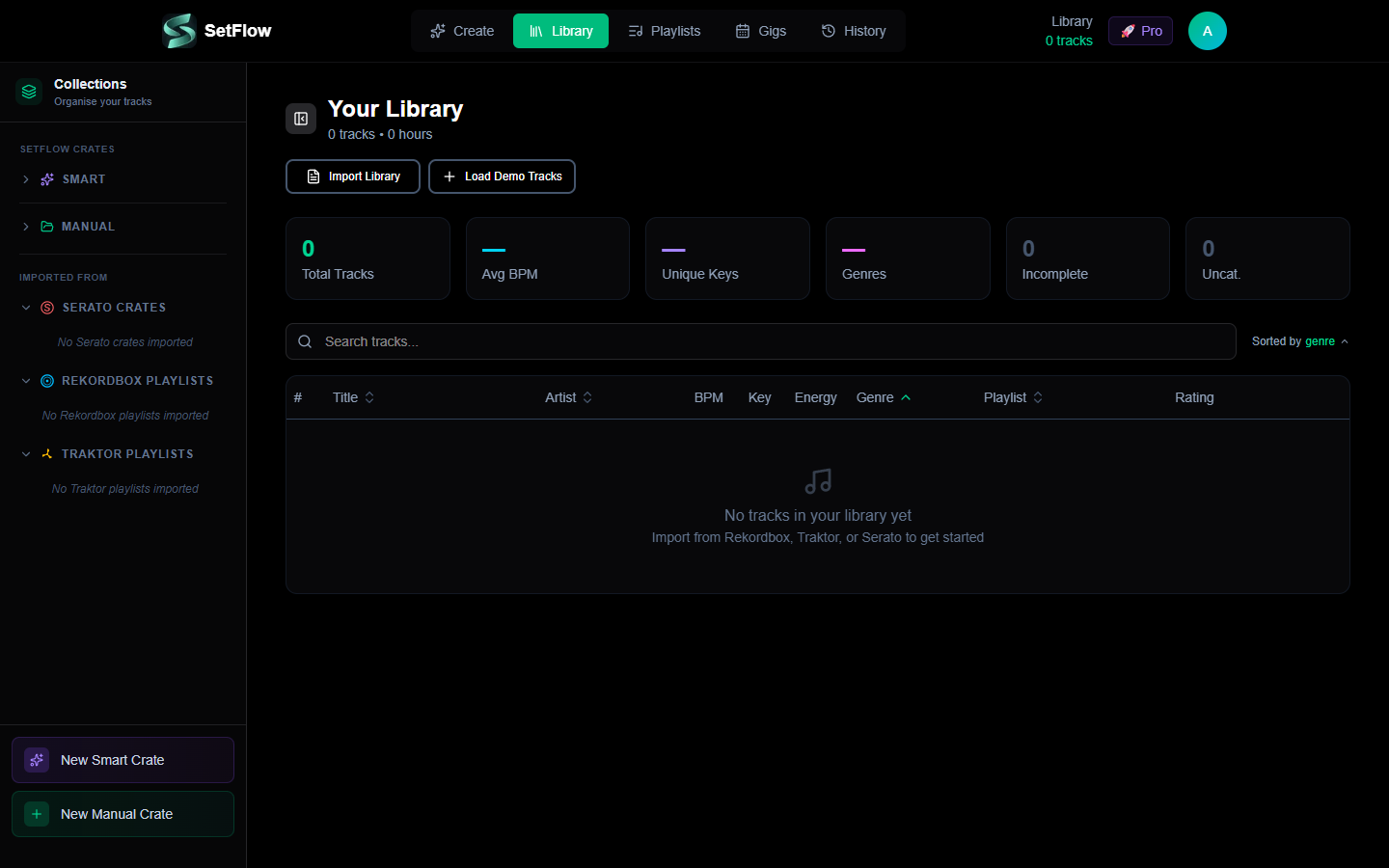
Once you import, your crates appear under the Serato section with live track counts based on your current library:
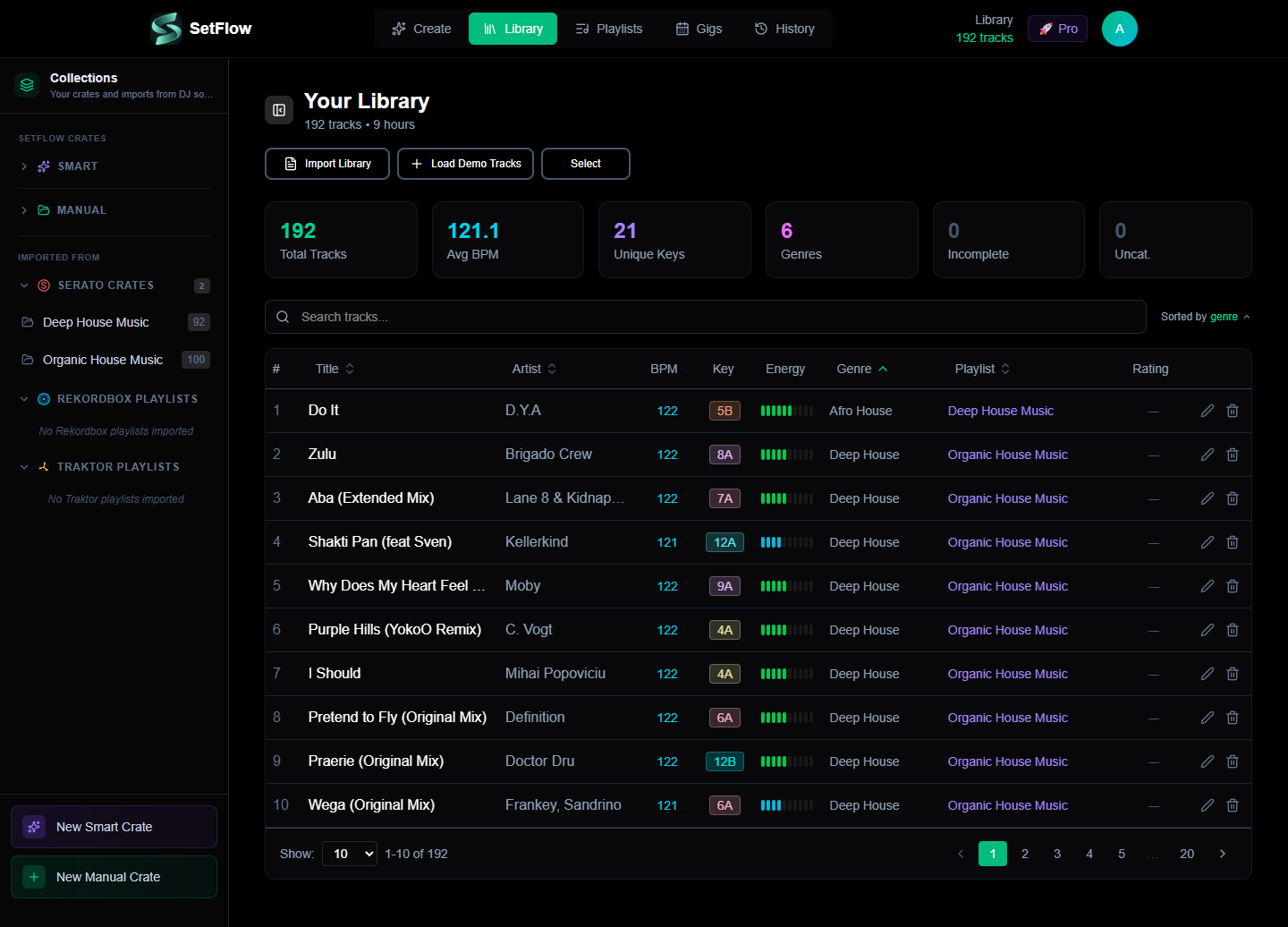
The sidebar uses smart defaults: empty sections collapse, sections with 1–5 items expand for quick access, and sections with 6+ items collapse to avoid scroll walls. Your manual expand / collapse choices are remembered across reloads via local storage.
Generating Sets From Serato Tracks
Once your library is in, set generation works exactly the same as for Rekordbox and Traktor. The Serato source is just metadata — the harmonic mixing engine, the energy curves, the BPM matching, and the crate filtering all run on the same code path. You can mix Serato, Traktor, and Rekordbox tracks together in the same generated set without any extra configuration.
One picker to filter them all
Shipping Serato meant rethinking the Create page too. SetFlow used to have two separate filter cards — Filter by Playlist and Filter by Crate — which stacked on top of each other and did conceptually the same job: narrow the pool of tracks for the set generator. With Serato in the mix that became three source types competing for the same vertical real estate.
We consolidated everything into a single Filter Source card that mirrors the Library sidebar's grouping:
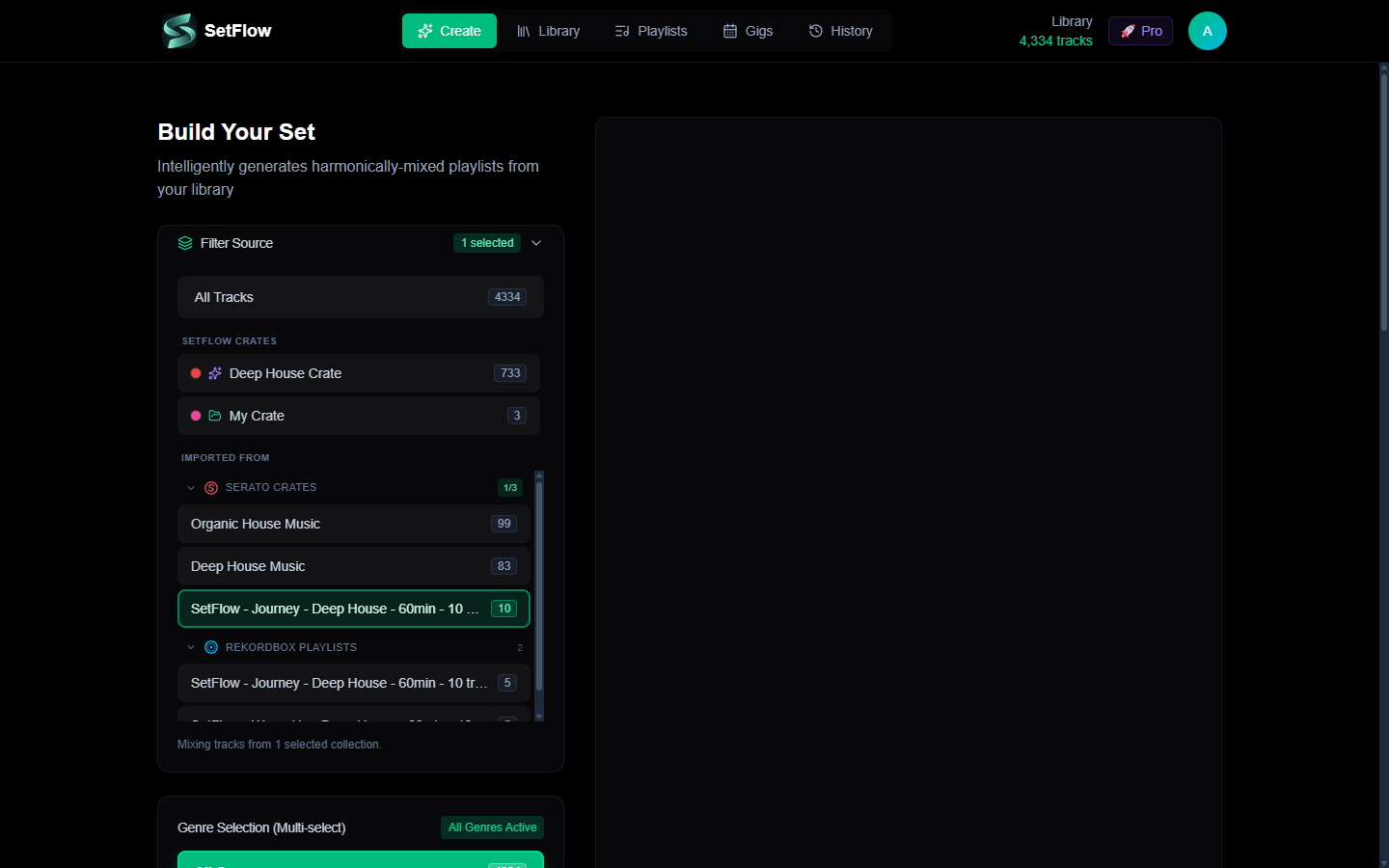
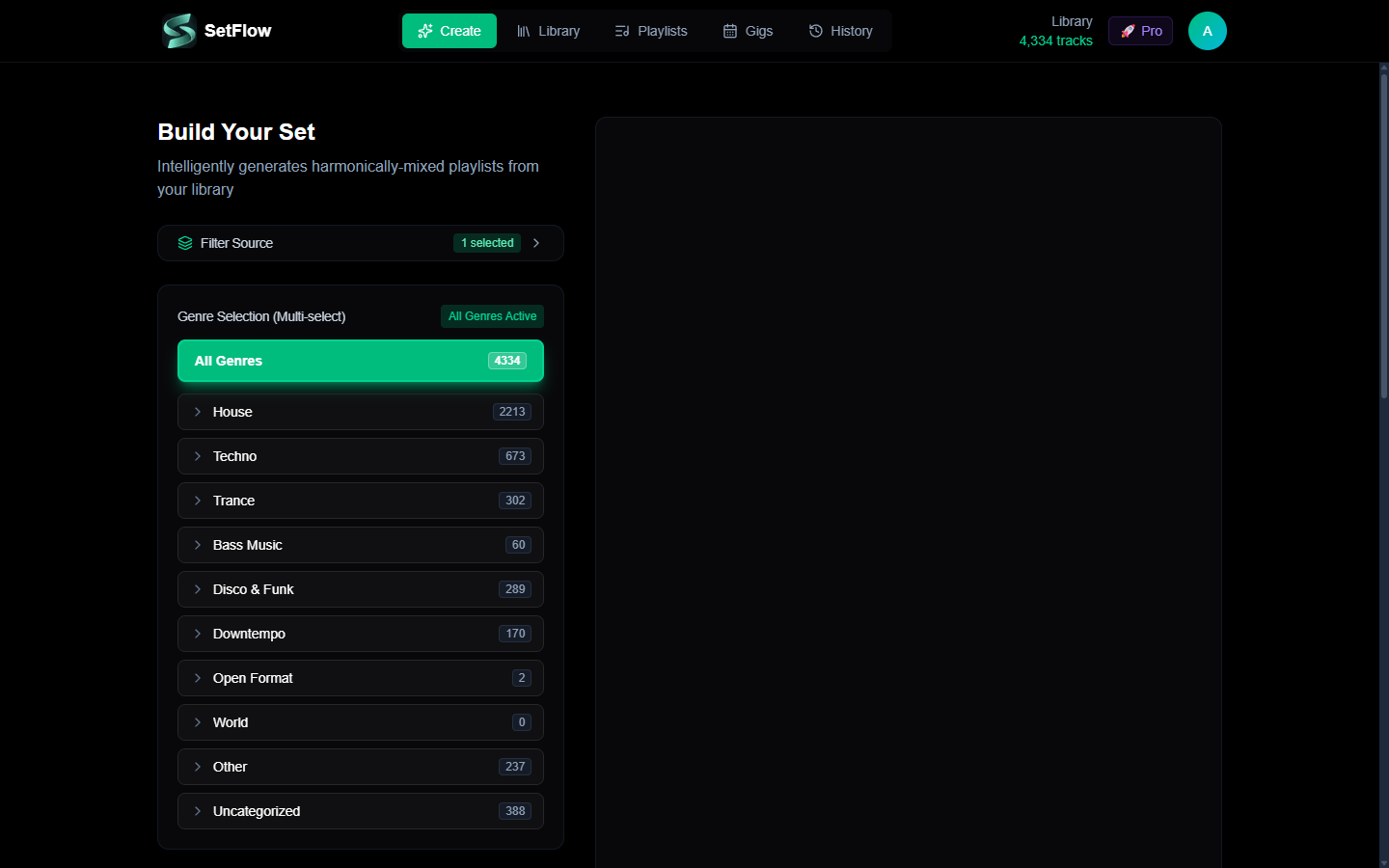
1/3 badge on Serato Crates shows at-a-glance how many are selected from that source.Collapses down to a single row when you're not actively picking, so the page isn't bloated by a filter you've already configured:
Each imported source within the Imported From group is also individually collapsible. So if you have 50 Rekordbox playlists but usually only care about your 3 Serato crates, you can collapse Rekordbox down to a single row and keep the picker focused:
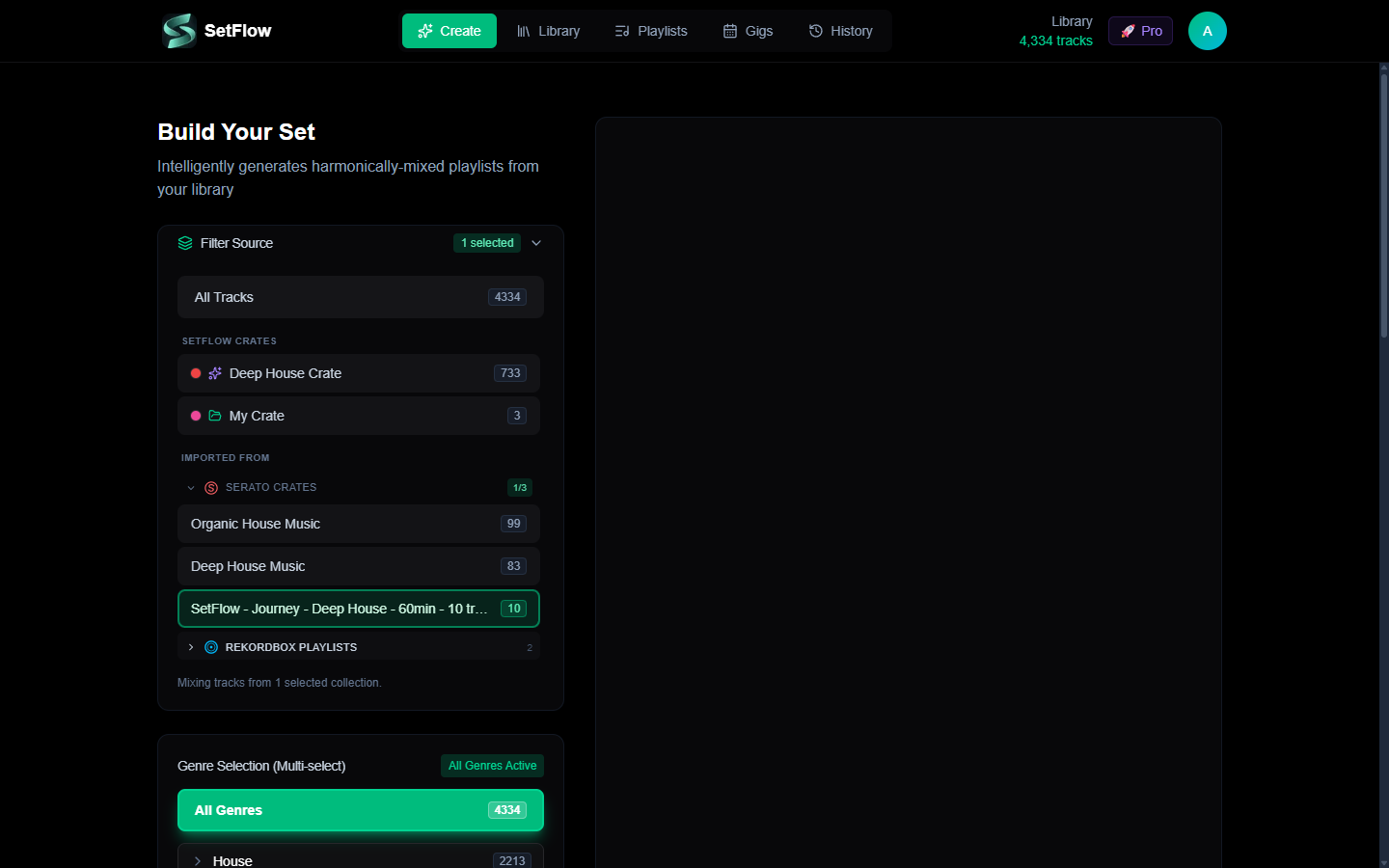
Selections across the two groups are a union at generation time — pick a Smart Crate and a Serato Crate and the generator mixes tracks from either. Clicking All Tracks resets in one tap. Underneath, the crateIds and playlistIds config shape is unchanged so every archetype, saved set, and custom plan keeps working the way it did before.
Exporting Sets Back To Serato
Generated sets now have a dedicated Serato Crate export option in every export panel — on the Create page, on the History page, and inside the expanded set view.
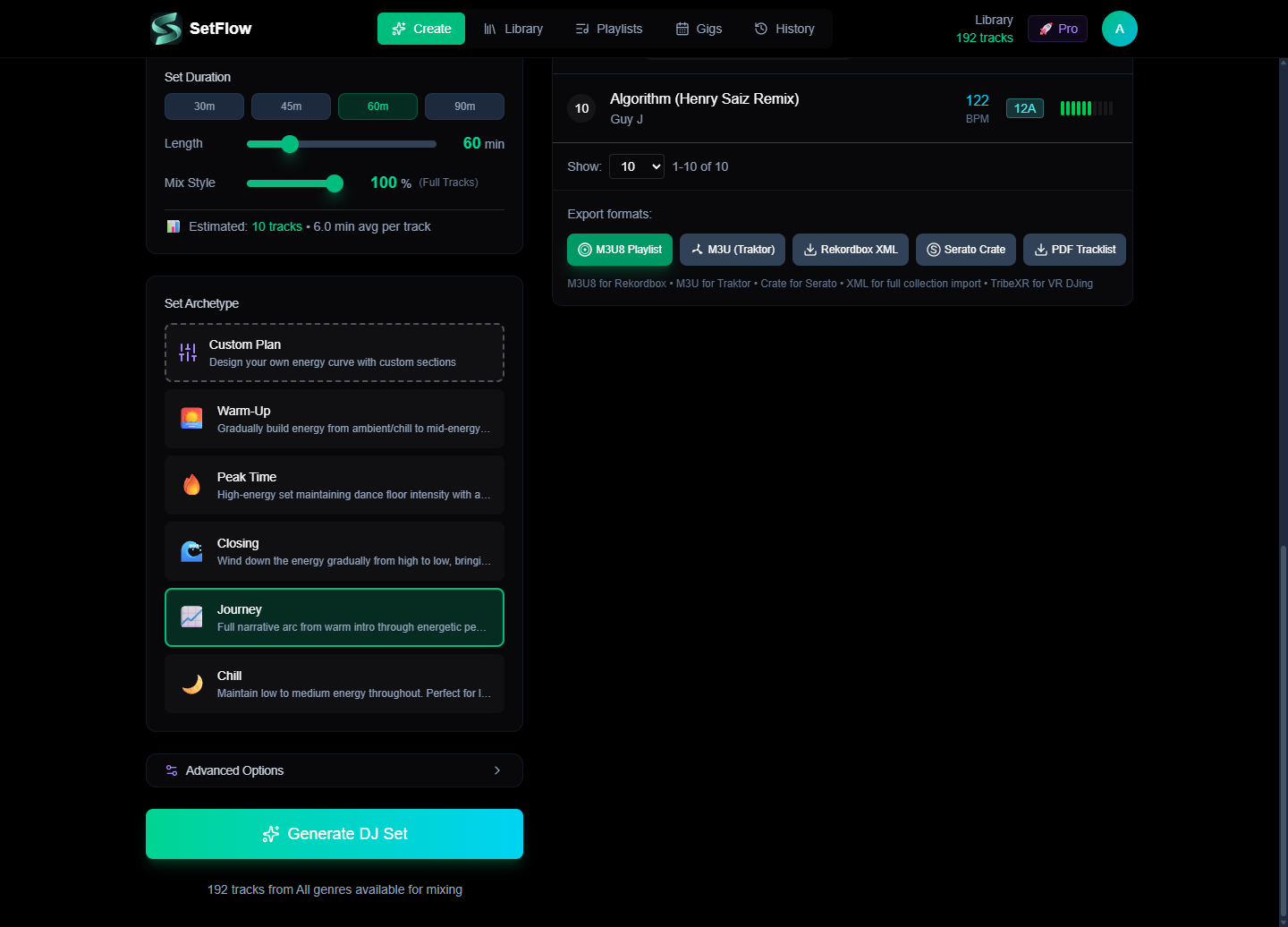
Click Serato Crate and SetFlow generates a binary .crate file named SetFlow - <set name> - <date>.crate. The file uses Serato's native binary format with proper drive-root-relative paths (Windows drive letters and POSIX leading slashes are stripped automatically).
To use it:
- Close Serato.
- Drop the downloaded
.crateinto your_Serato_/Subcrates/folder. - Reopen Serato — the new crate appears in your sidebar with every track linked to your library.
Clearing Your Library
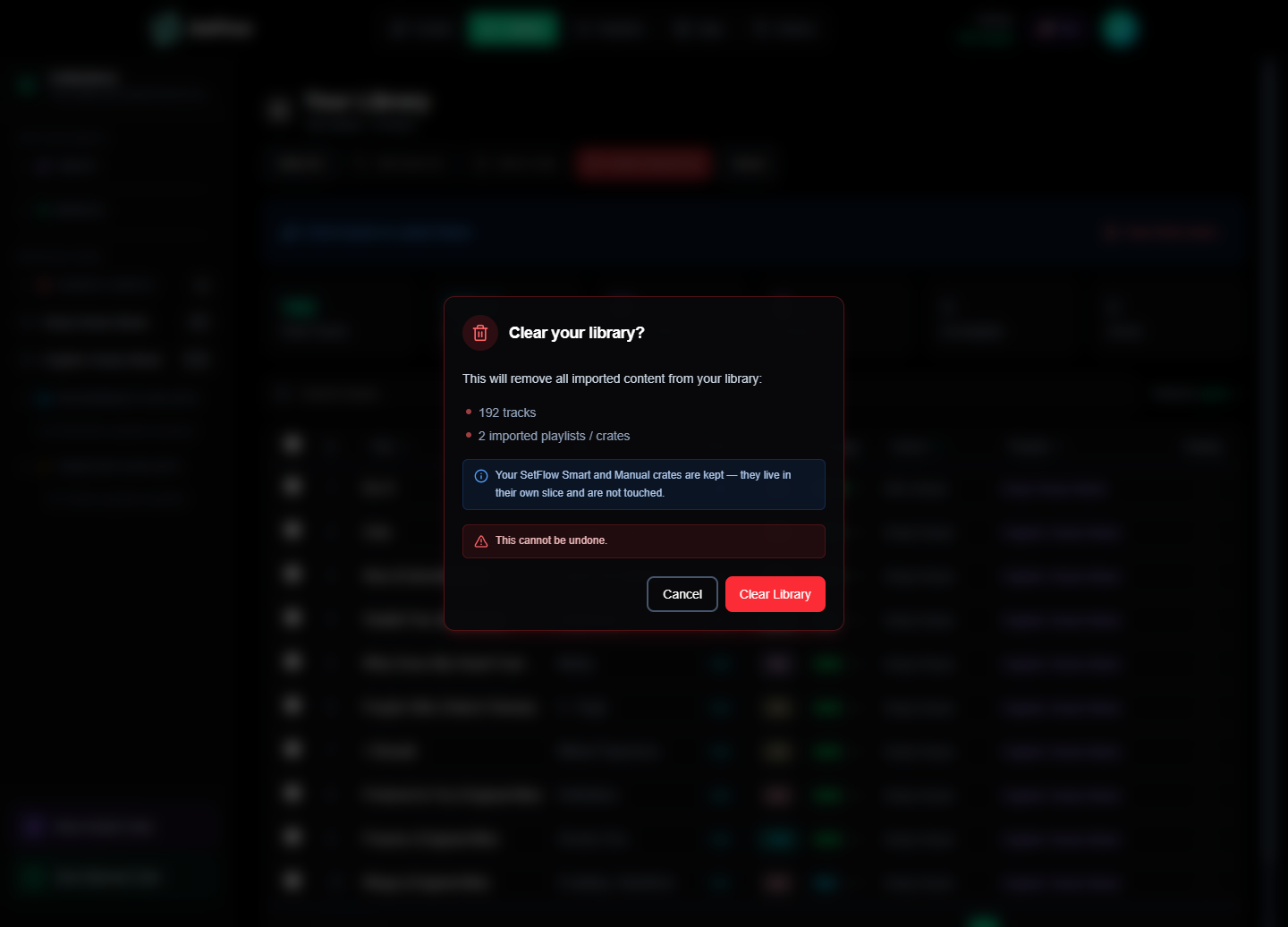
Alongside Serato support we've cleaned up the Clear Library flow. Previously the action only deleted track rows, leaving orphaned playlist entries with zero-track counts in the sidebar. Now Clear Library wipes both — tracks AND every imported playlist or crate from any DJ software — while explicitly preserving your SetFlow Smart and Manual crates.
What's In Parity
- Full track metadata: title, artist, album, BPM (rounded), key (Open Key → Camelot), genre, rating, comments, file path
- Crate hierarchy and membership preserved (including
%%-nested folders) - Harmonic set generation, energy curves, smart crate filtering — same algorithm as Rekordbox and Traktor
- Round-trip
.crateexport with correct drive-root-relative paths - Mix Serato, Traktor, and Rekordbox tracks together in the same generated set
- 200 MB per-file cap, 300 MB aggregate cap across the folder
- Available on all plans — Trial, Hobby, and Pro
What Stays In Serato
Serato stores cue points, hot cues, beatgrids, and saved loops inside your audio files themselves — as ID3 GEOB tags on MP3 / AIFF, as Vorbis comments on FLAC, and as custom atoms on MP4 / M4A. SetFlow intentionally doesn't touch any of that. We never read your audio files, never write to them, and never propose to migrate analysis between DJ software.
This means a round-trip through SetFlow is additive: you get SetFlow's harmonic-set generation on top of the cue and grid work you've already done in Serato. Nothing is overwritten. If you want to migrate cues and grids between platforms, dedicated tools like Lexicon are the right choice — that's a different product category.
Behind The Scenes
For the technically curious: the parser is ~50 LOC of TypeScript that decodes Serato's tag-based binary envelope ([4-byte ASCII tag][4-byte u32 BE length][payload]) and dispatches based on tag prefix — o* records hold nested records, t* and p* hold UTF-16 BE text, u* holds 32-bit big-endian integers. The format is reverse-engineered and well-documented by the Mixxx project; we ported the spec directly to TypeScript so we have zero runtime dependencies on third-party Serato libraries (the available ones are all Python or Rust).
The whole thing runs in a Web Worker so parsing a 50,000-track library doesn't block your UI. Track counts in the sidebar are computed live from the current track array, not from stored counts, so they stay accurate as you edit or delete tracks.
Frequently Asked Questions
Can I use SetFlow with Serato DJ?
Yes. SetFlow imports your Serato library and crates directly from your _Serato_ folder, generates harmonically-mixed sets, and exports them back as native .crate files you drop into _Serato_/Subcrates/. Your cue points and beatgrids stay in Serato, untouched.
How do I import my Serato library into SetFlow?
Close Serato first, open SetFlow’s Library, click Import Library, choose the Serato tab, and point it at your _Serato_ folder (~/Music/_Serato_ on macOS). Everything is parsed in your browser — your files never leave your device.
Does SetFlow change my Serato cue points or beatgrids?
No. Serato stores cues, hot cues, beatgrids, and loops inside your audio files; SetFlow never reads or writes those. A round-trip is purely additive — you get harmonic set generation on top of the cue and grid work you have already done.
Can I export a SetFlow set back to Serato?
Yes. Every export panel has a Serato Crate option that generates a native binary .crate file. Close Serato, drop the file into _Serato_/Subcrates/, and reopen Serato — the crate appears in your sidebar with every track linked to your library.
Can I mix Serato tracks with Rekordbox and Traktor tracks?
Yes — once imported, the source is just metadata. The harmonic engine, energy curves, BPM matching, and crate filtering all run on the same code path, so you can mix Serato, Rekordbox, and Traktor tracks together in one generated set.
Try It
Head to your Library, click Import Library, and pick the Serato tab. Two minutes from click to first generated set, and your Serato workflow stays exactly as it was — SetFlow runs alongside.
Get the Camelot cheat sheet
A one-page printable of all 24 keys, compatible moves, and energy jumps — handy next to the decks.
One email with your download. No newsletter, no spam.
Ready to build better sets?
Import your Rekordbox, Traktor, or Serato library and generate perfectly mixed DJ sets in seconds.
Try SetFlow Free